
1
Excel
Updated Sep 27, 2026Add-in ribbon buttons are disabled
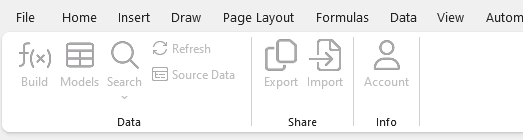
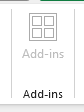
If the TagniFi add-in is visible in Excel, but all ribbon buttons for the add-in are disabled, your Excel model may be running in "compatibility mode". In this mode, you will also see that the Home -> Add-ins button is disabled.
To fix this, follow the follow steps to upgrade the Excel file:
- 1Make a copy of your Excel model as a backup. Go to File -> Save As and save as a filename different to the current file. This step is important in case the upgrade causes data loss in your file.
- 2Go to File -> Info. If compatibility mode is enabled, you will see message similar to:
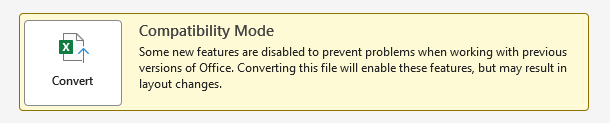
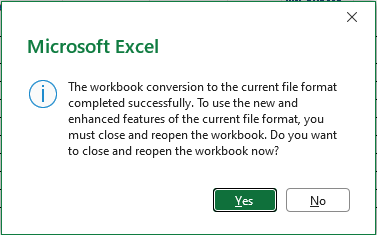
- 1Click Convert. Then click OK if a confirmation dialog is shown. And finally, choose to re-open the file.

- 1The Excel model should now be compatible with the TagniFi add-in. See Installing the TagniFi for Excel Add-In for further information on starting and signing in.