
Spread
Updated Sep 1, 2026Adding a Company
Adding a Company
This process walks you through adding a new company in TagniFi Spread, including setting its name, ID, financial statement layout, and reporting currency.
Step 1: Open the Add Company Form
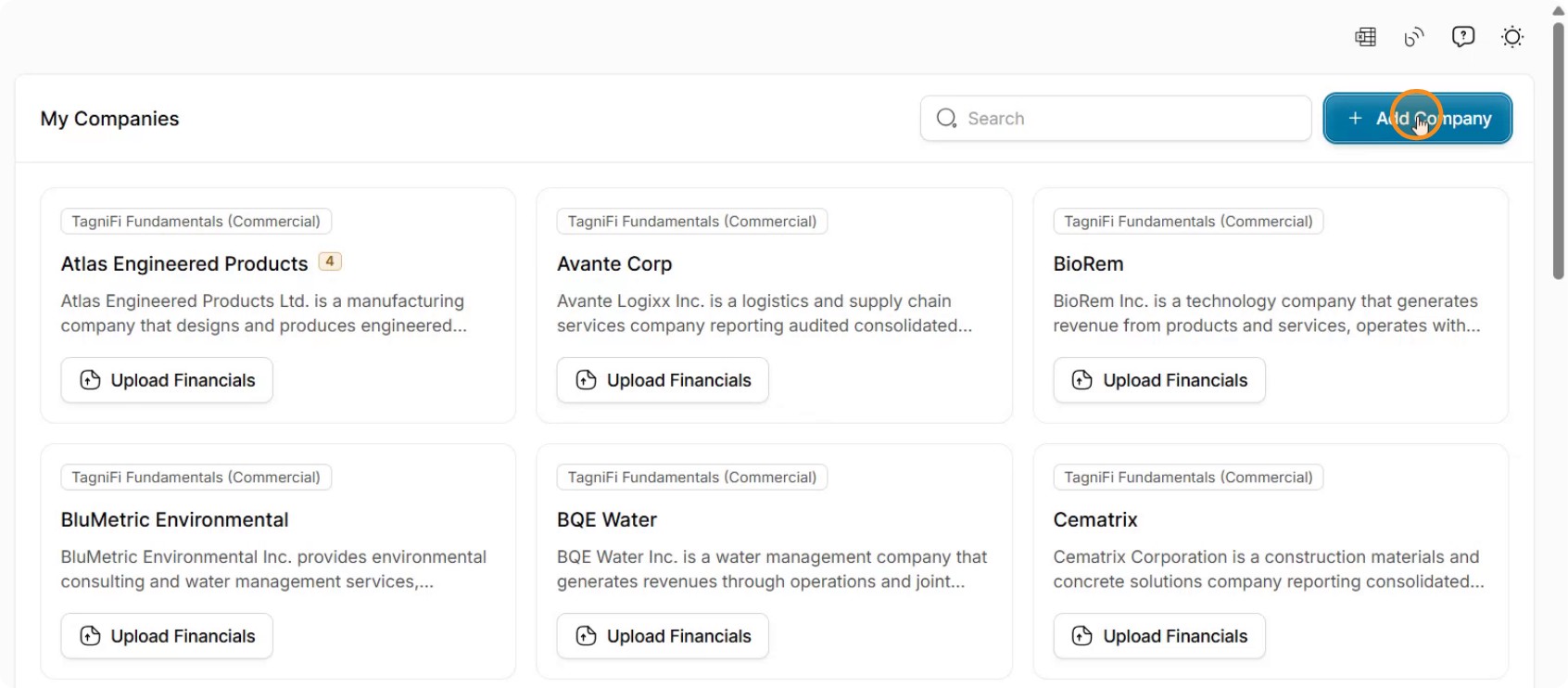
Click the Add Company button to open the company creation form.
Step 2: Enter Company Name and Review ID
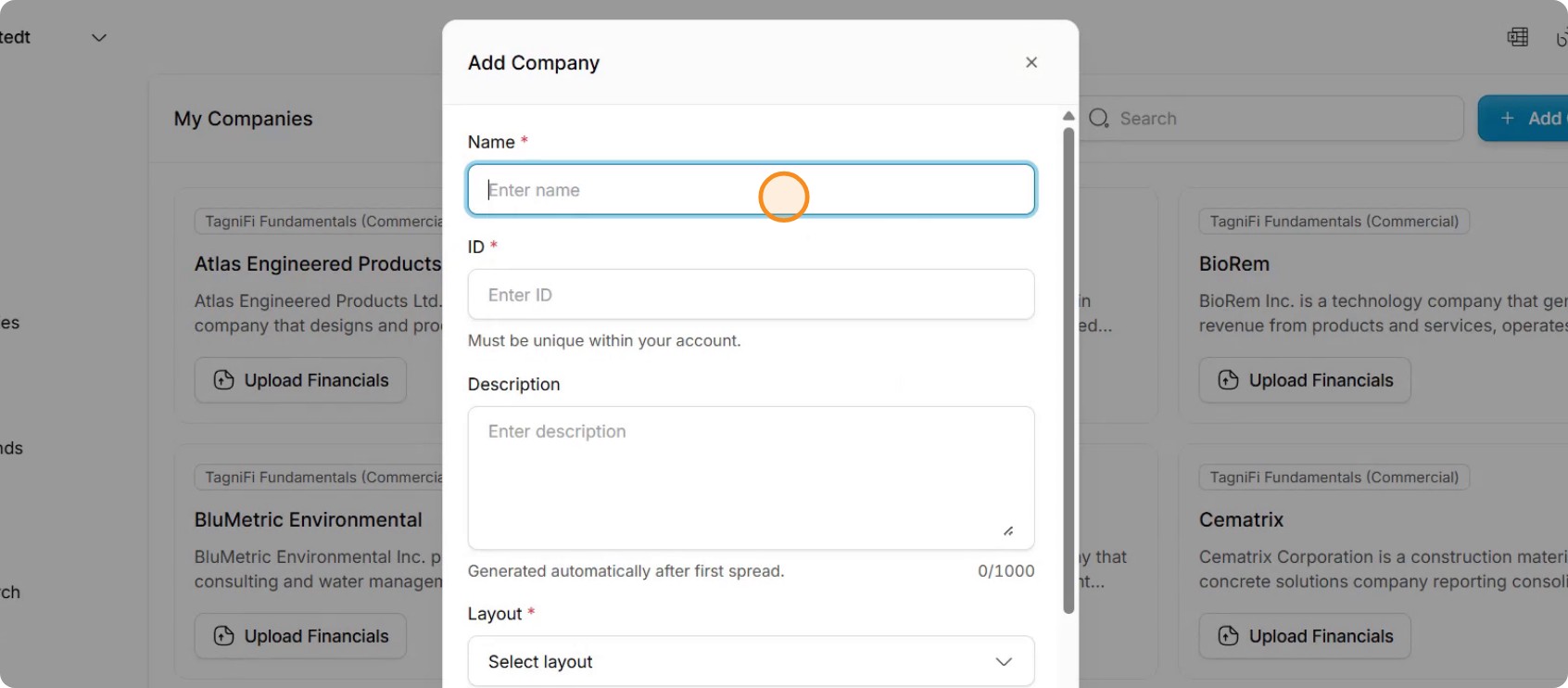
Enter the company name in the appropriate field. An ID is generated automatically once you enter the company name; you can either accept this default ID or modify it if needed.
Step 3: (Optional) Provide a Description
Optionally, add a description for the company. If you leave this blank, Tagnify Spread can pull a description from the company’s financials automatically.
Step 4: Select the Financial Statement Layout
Choose the layout for the company’s financial statements. This layout determines how the financials will be standardized.
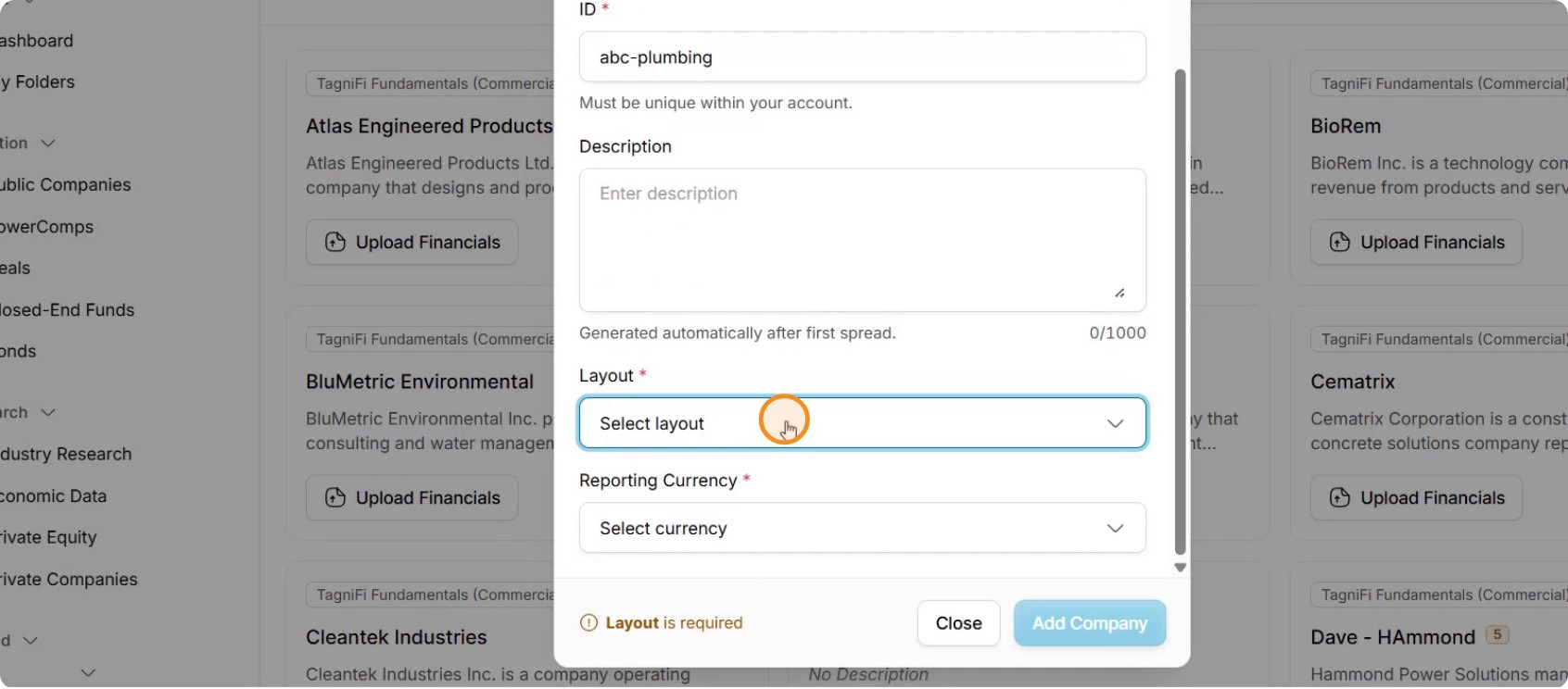
Since this example is for a plumbing company, select the TagniFi Fundamentals layout, which is the standard layout.
Step 5: Set the Reporting Currency
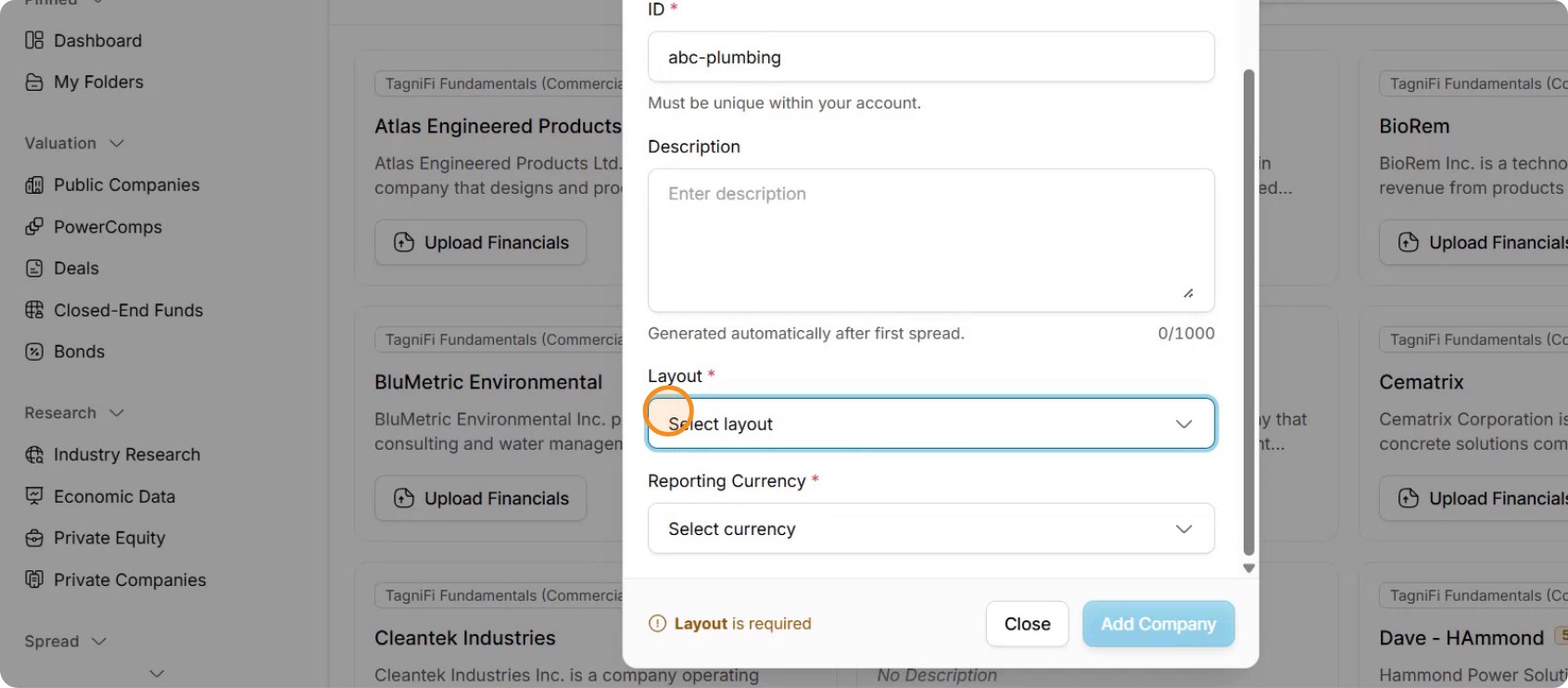
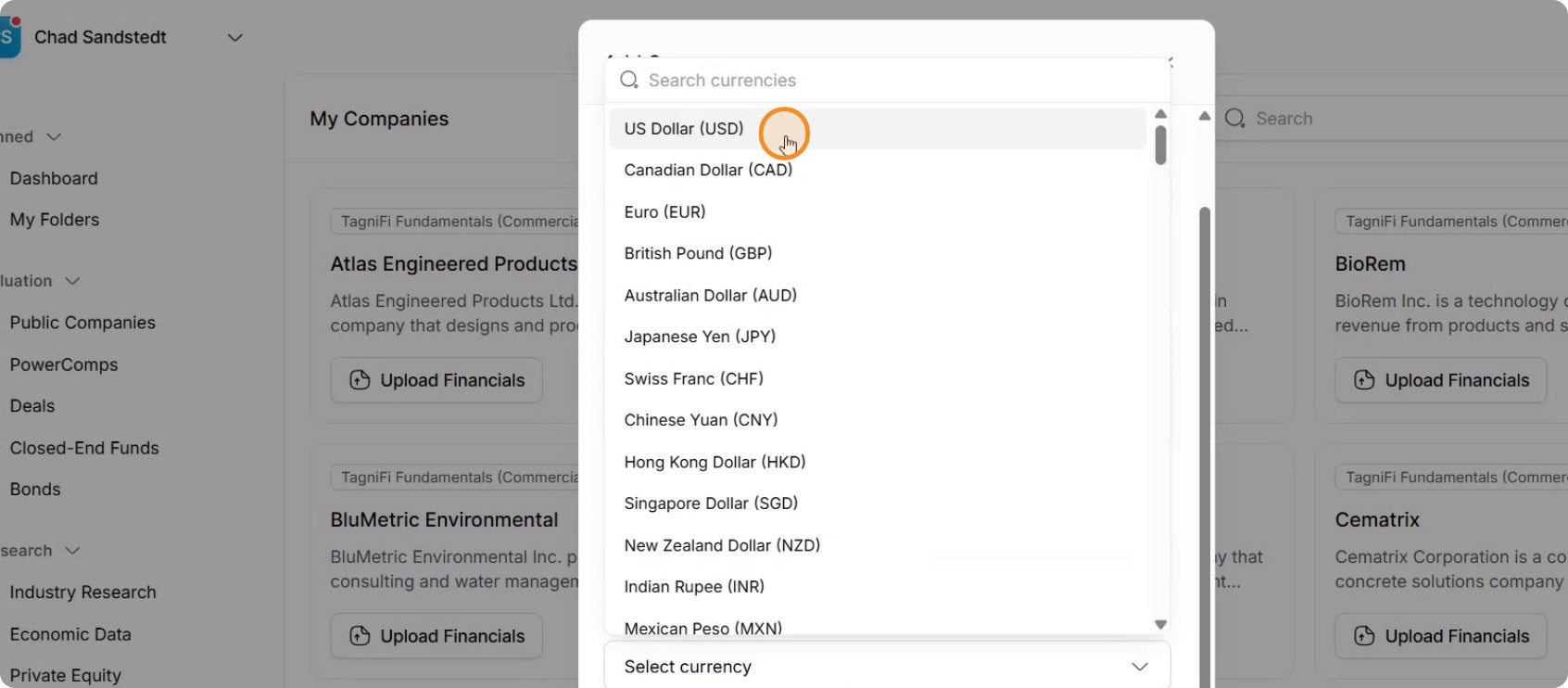
Specify the reporting currency for the company.
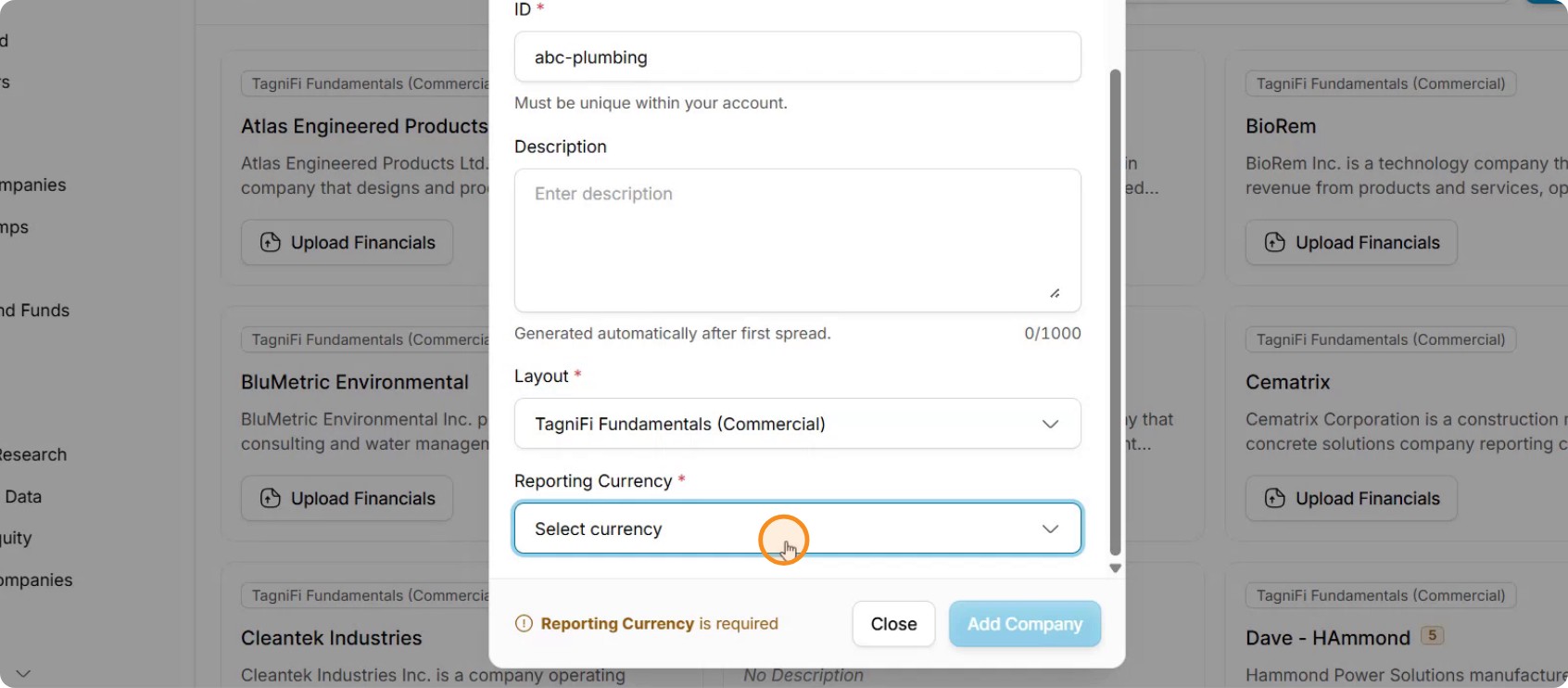
For a U.S. company, select U.S. dollar so that, if the currency cannot be identified on the financial statement, Tagnify Spread assumes the values are in U.S. dollars.
Step 6: Add the Company
Click Add Company to finalize and save the new company.
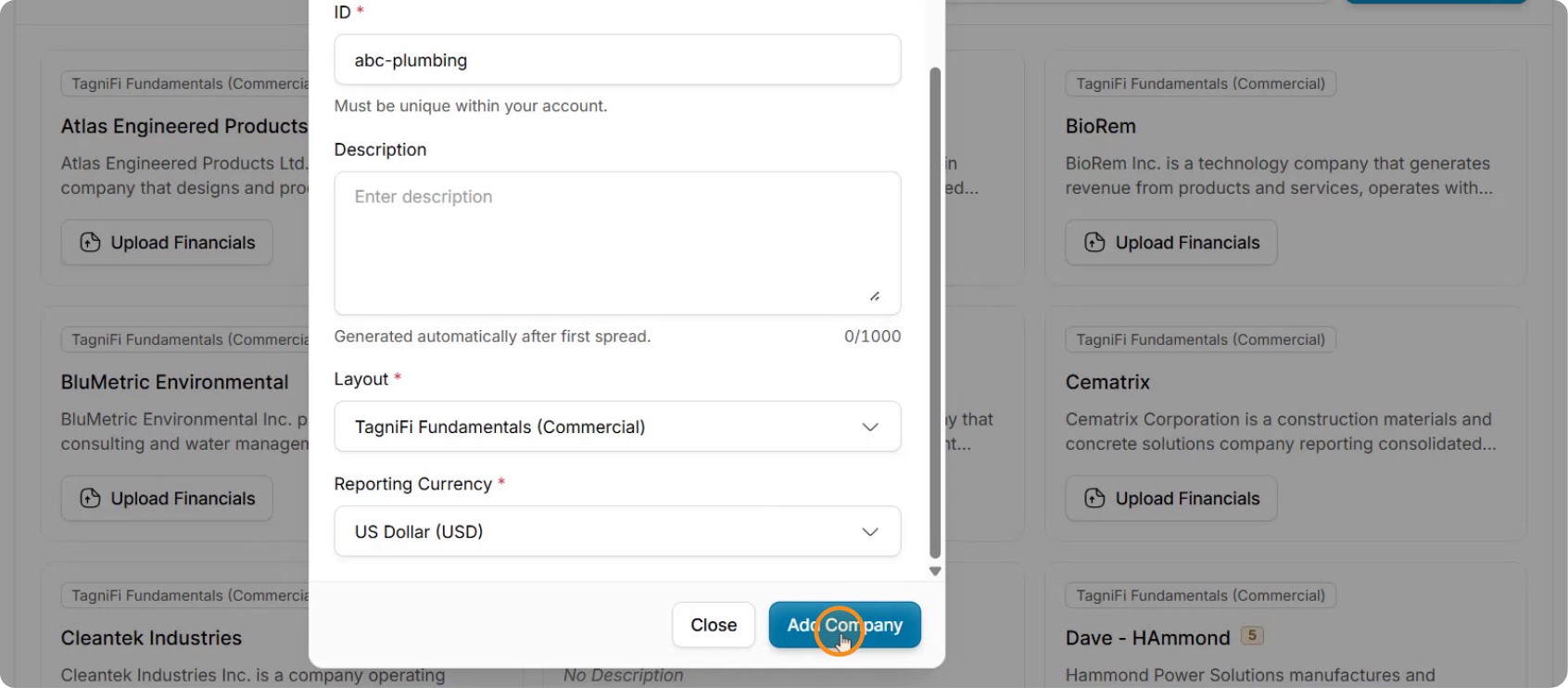
The company is now added and appears in your list as the first company in Tagnify Spread.
Next articleSpread: Creating and Customizing Layouts