
1
Excel
Updated Sep 27, 2026Encountering a #NAME? error
If a TagniFi value in your model exhibits the #NAME? error code on recalculation, this means that there is a communication issue between Excel and the TagniFi add-in.
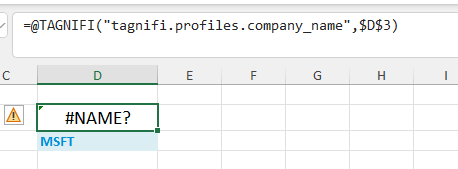
The following troubleshooting steps can be attempted to rectify this issue, and restore the broken value(s) in your model.
Option 1: Ensure TagniFi for Excel is installed
- 1From the Home ribbon, select the Add-ins button.
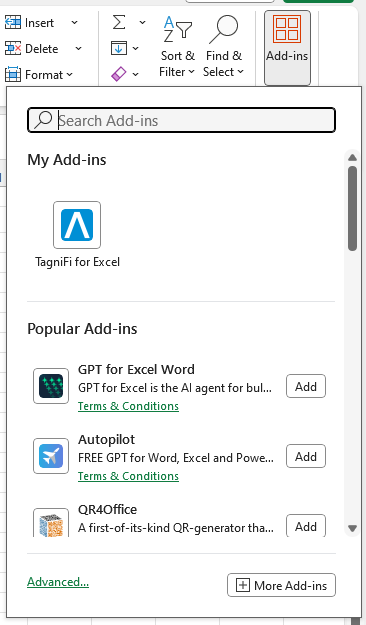
- 1If TagniFi for Excel is shown in the My Add-ins section, the add-in is installed, and you can proceed to other troubleshooting options. If not, see Installing the TagniFi for Excel Add-In to complete the installation.
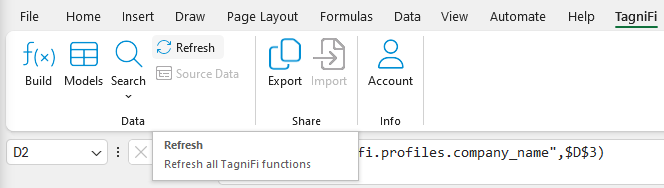
- 2Once installed, open the TagniFi ribbon tab and select the Refresh button to recalculate all TagniFi values. Log in with your TagniFi credentials if/when prompted.
- 3Once the refresh procedure has completed, check that the affected TagniFi cells have been updated to display correct values.
Option 2: Reinstall the TagniFi add-in
If the TagniFi add-in is already installed, you may be able to resolve the issue by removing and re-installing the add-in.
- 1Remove the current installation using the following guide: Removing The TagniFi Excel Add-In
- 2Reinstall the add-in using the following guide: Installing the TagniFi for Excel Add-In
- 3Once reinstalled, open the TagniFi ribbon tab and select the Refresh button to recalculate all TagniFi values. Log in with your TagniFi credentials if/when prompted.
- 4Once the refresh procedure has completed, check that the affected TagniFi cells have been updated to display correct values.
Option 3: Re-launch the add-in
If reinstalling the add-in doesn't work, you can attempt to re-launch the add-in in your current model/workbook.
- 1From the Home ribbon, select the Add-ins button -> More Add-ins.
- 2From the Apps window, search for "tagnifi".
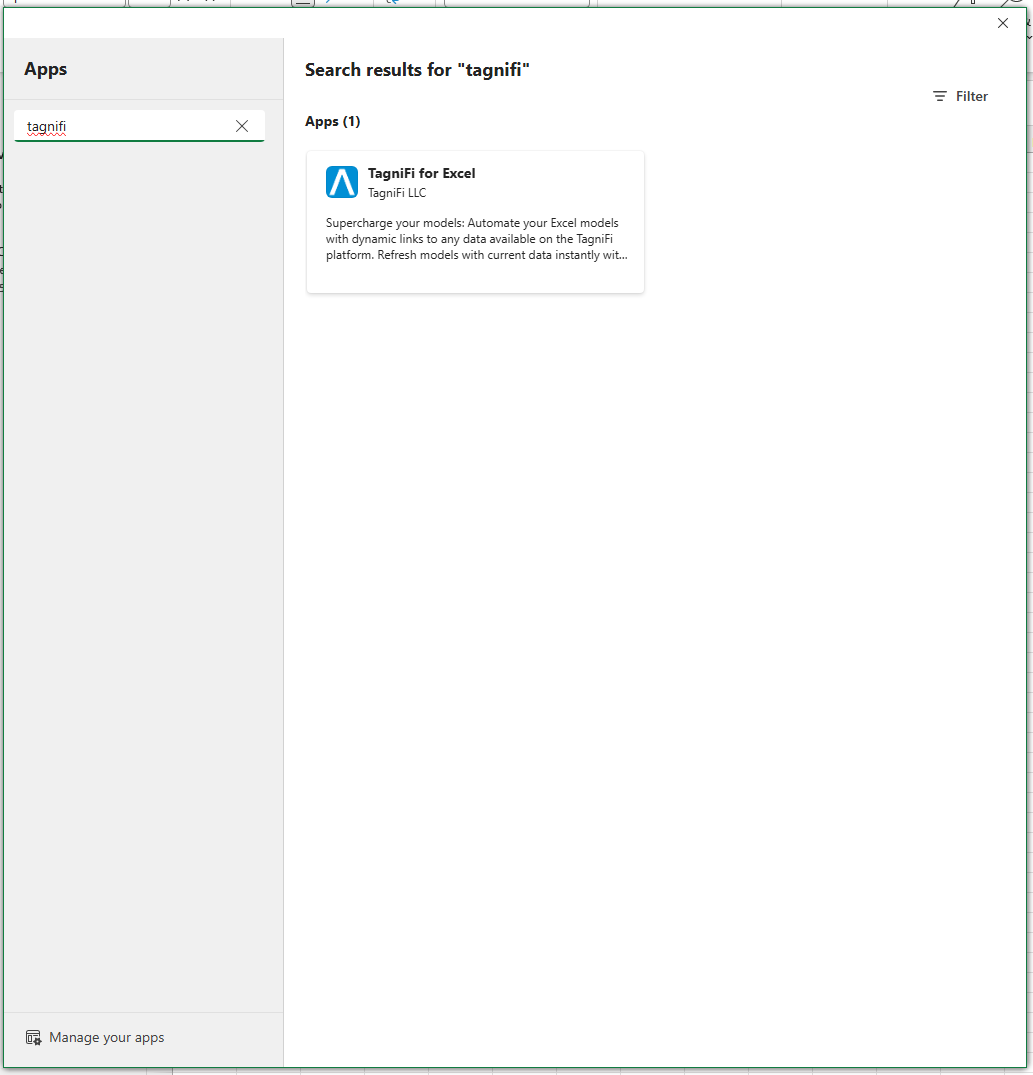
- 1Select the TagniFi for Excel result. Then select Open.
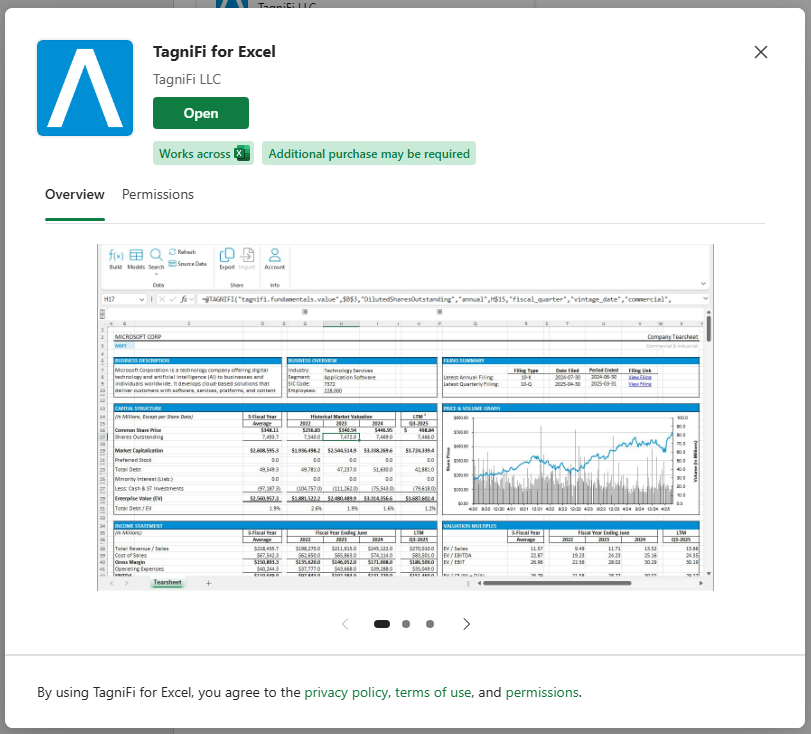
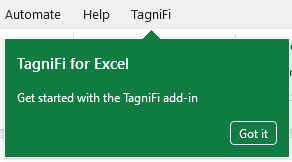
- 1You should see a confirmation that the add-in has started.
- 1Once re-launched, open the TagniFi ribbon tab and select the Refresh button to recalculate all TagniFi values. Log in with your TagniFi credentials if/when prompted.
- 2Once the refresh procedure has completed, check that the affected TagniFi cells have been updated to display correct values.
Option 4: Perform a data fix
If the previous options do not restore your TagniFi values, you can attempt to manually trigger a data fix procedure.
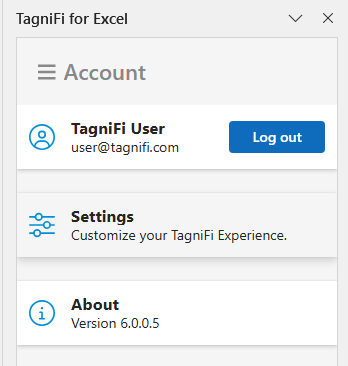
- 1Open the TagniFi ribbon tab and select the Account button. From the Account page, select Settings.
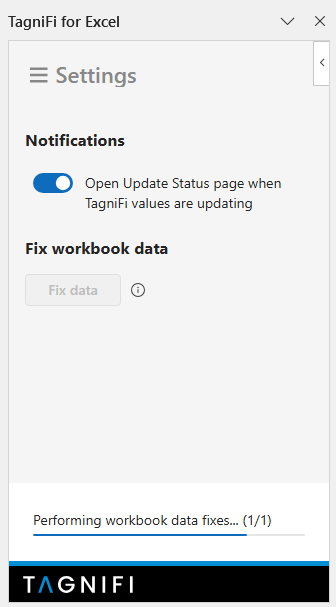
- 1Click Fix data. This perform the data fix procedure on all workbook values and may take a few minutes to complete.
- 1Once the procedure has completed, check that the affected TagniFi cells have been updated to display correct values.