
Spread
Updated Sep 21, 2026Managing and Resolving Financial Statement Errors
Managing and Resolving Financial Statement Errors
This document explains how to identify, correct, and remap errors that appear when spreading financial statements, such as balance sheets that do not balance due to data or rounding issues. It covers reviewing the source financials, manually correcting values, and adjusting mappings so that only error‑free statements are published.
Step 1: Review the Reported Error on the Financial Statement
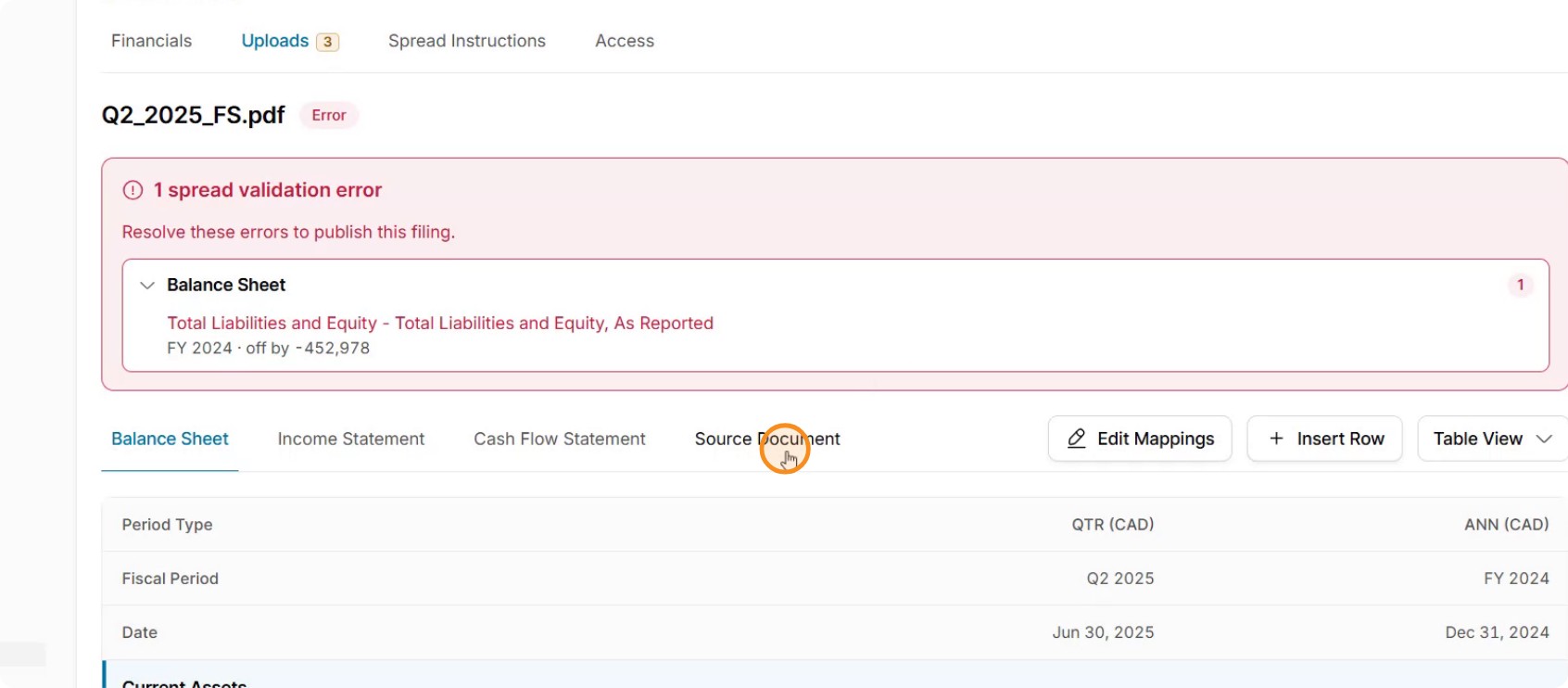
Identify the error flagged for the relevant financial statement (for example, Q2 2025).
Scroll down to the error section to locate the imbalance highlighted in red.
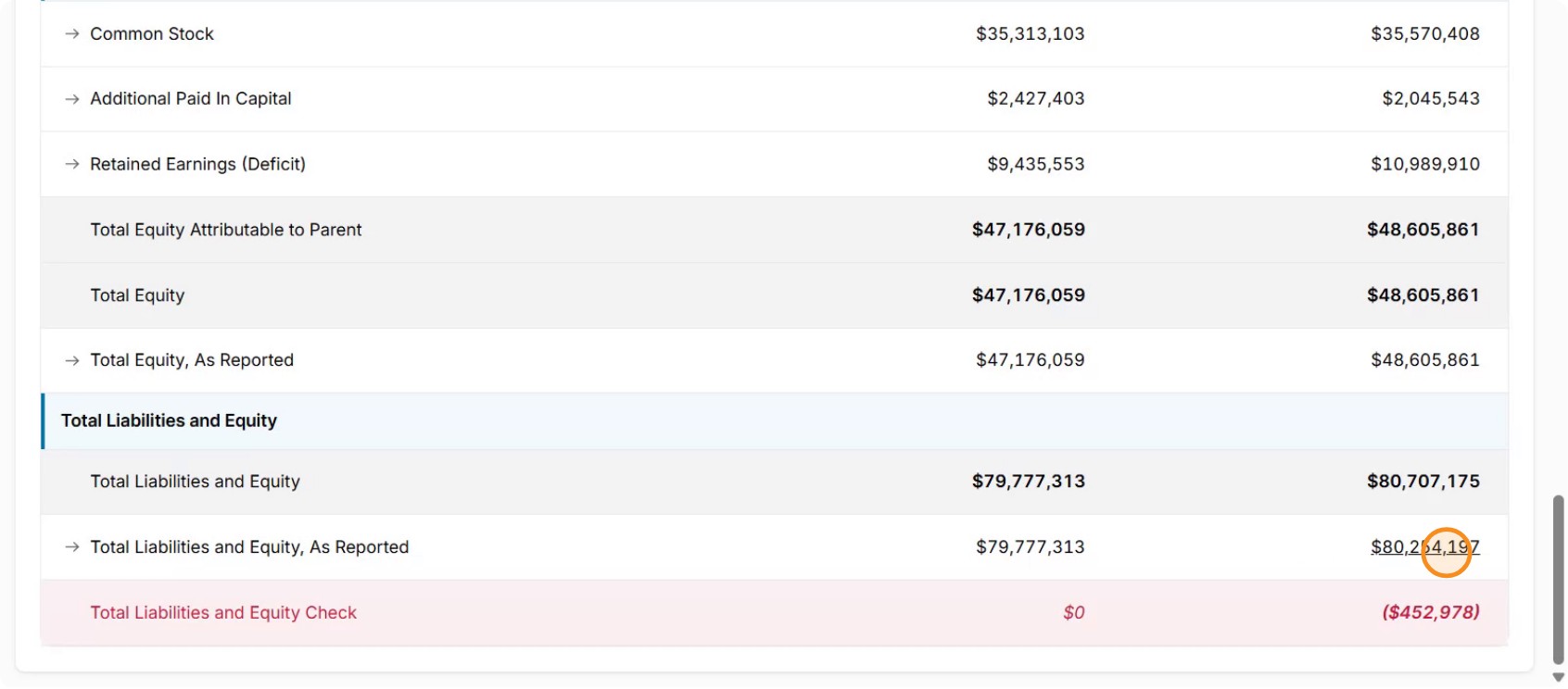
Confirm the variance by comparing total assets to total liabilities and equity (e.g., total assets of 80.7M vs. total liabilities and equity of 80.3M, showing a difference of about 450K).
Step 2: Verify the Imbalance in the Source Document
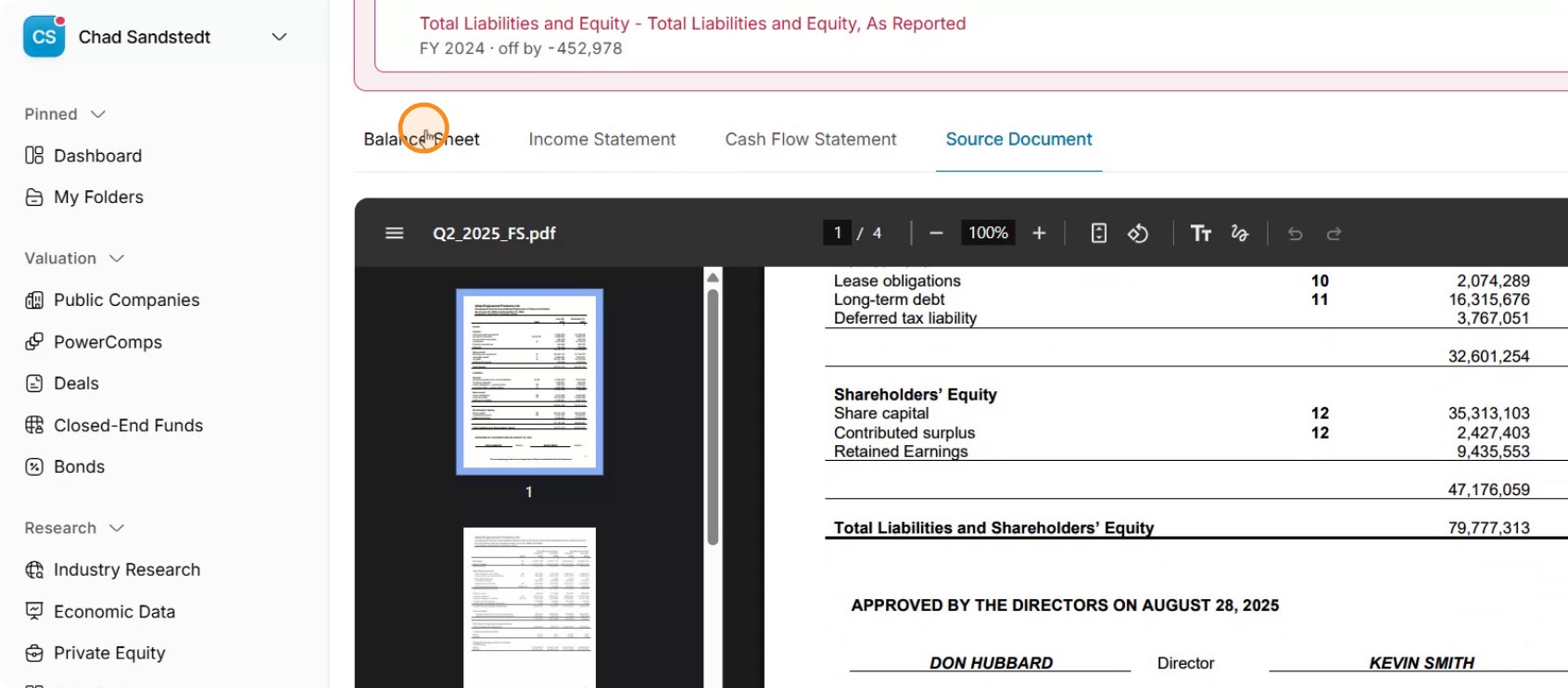
Open the source financial statement (PDF) linked to the spread.
Compare the totals in the PDF to the values in your spread to confirm whether the imbalance originates from the filed financials themselves (e.g., total liabilities and equity of 80.3M versus total assets of 80.7M).
Check supporting subtotals (such as total liabilities and total equity) to understand where the discrepancy lies.
Step 3: Return to the Balance Sheet in the Application
Navigate back from the source document view to the balance sheet within the spreading application where the error was flagged.
Ensure you are on the correct period (e.g., Q2 2025) and viewing the section that contains the imbalance.
Step 4: Manually Correct the Incorrect Total
Locate the incorrect value that needs to be updated (for example, “Total Liabilities and Equity – As Reported”).
Click directly into that value to enable editing.
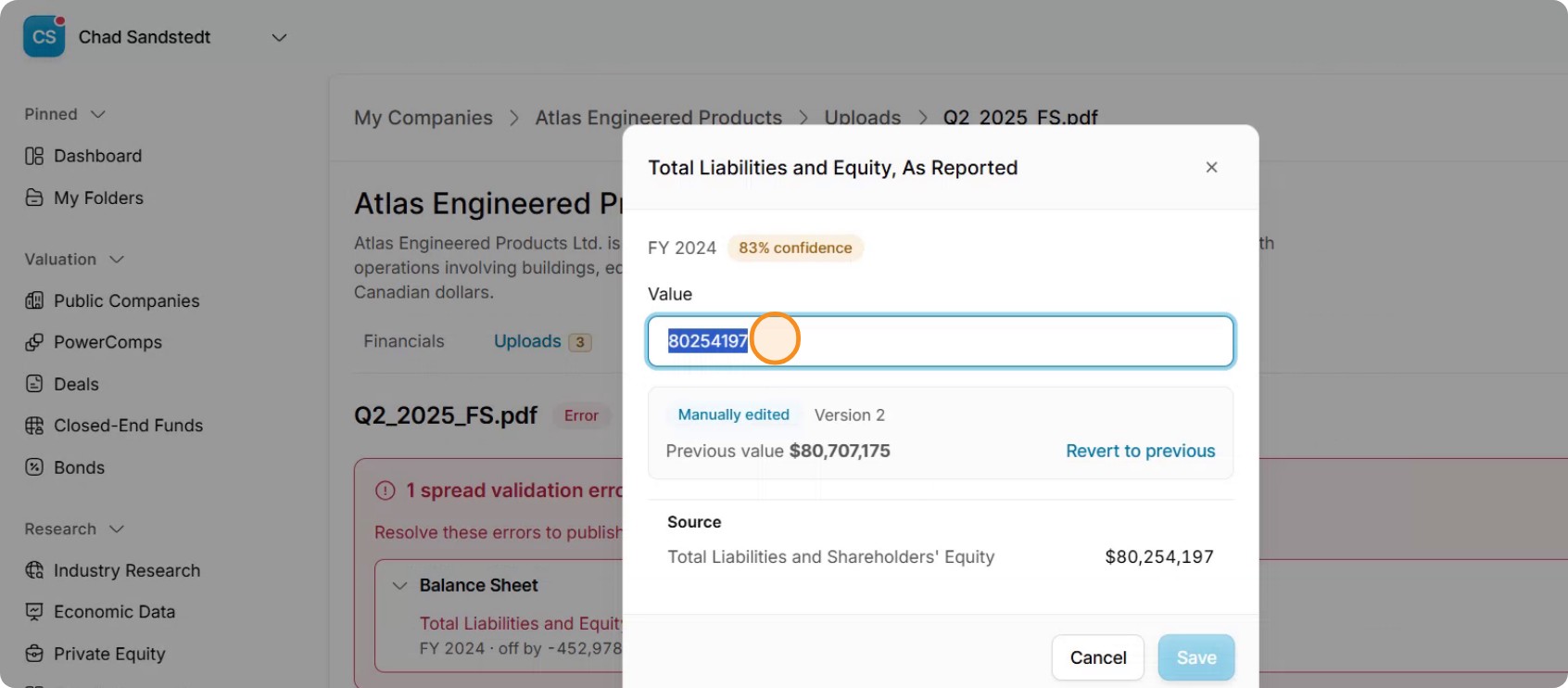
Replace the incorrect number with the correct figure from the source financials (removing commas if required), then save your changes.
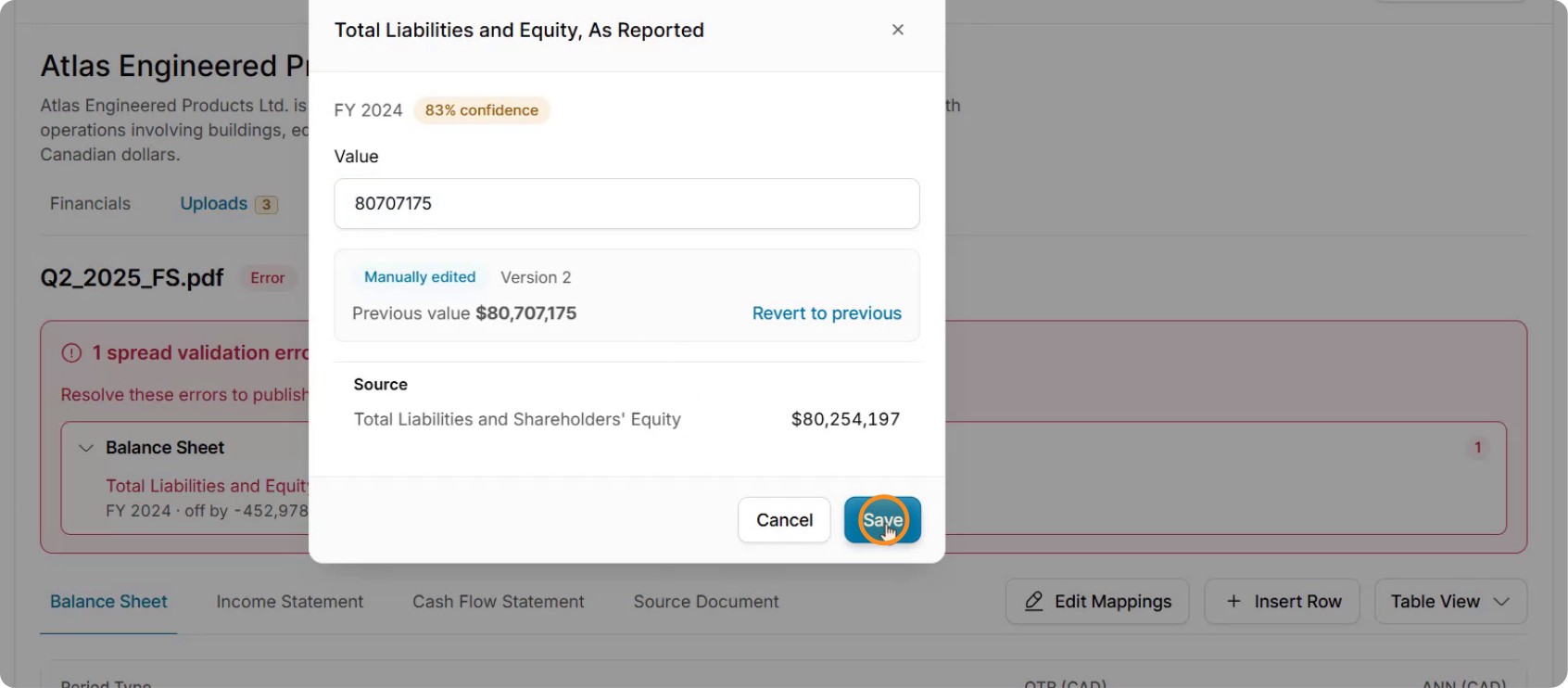
Confirm that the error indicator clears and that the balance sheet now balances. This method is appropriate when you simply need to override an incorrect value.
Step 5: Open the Mapping Editor to Address Mapping-Related Errors
If the error is due to incorrect mapping rather than a wrong numeric value, use the mapping editor.
Click the Edit Mappings button to open the mapping configuration for the financial statement.
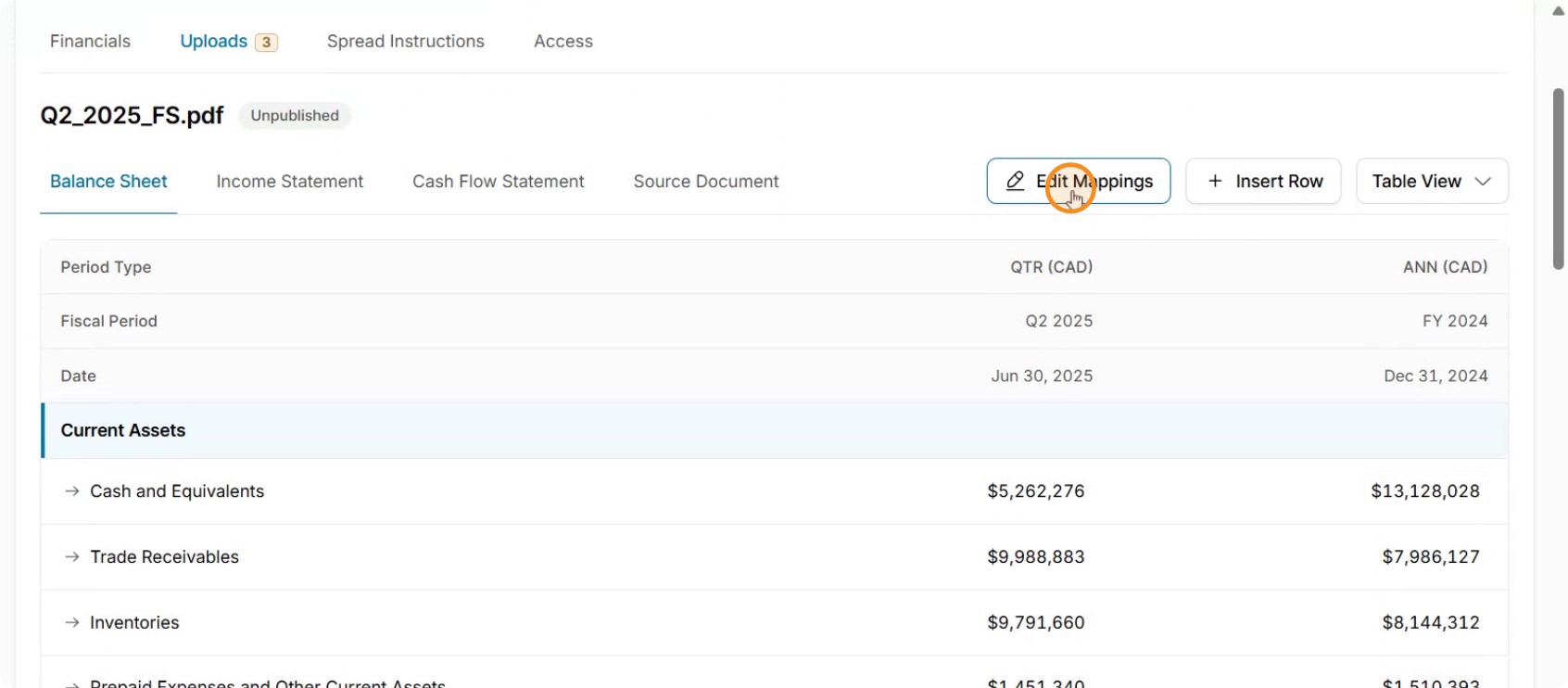
Review the listed line items, their mapping destinations, and confidence levels to identify any incorrectly mapped items.
Step 6: Remap Specific Line Items and Save
Select the line item that needs to be remapped (for example, “Customer deposits”).
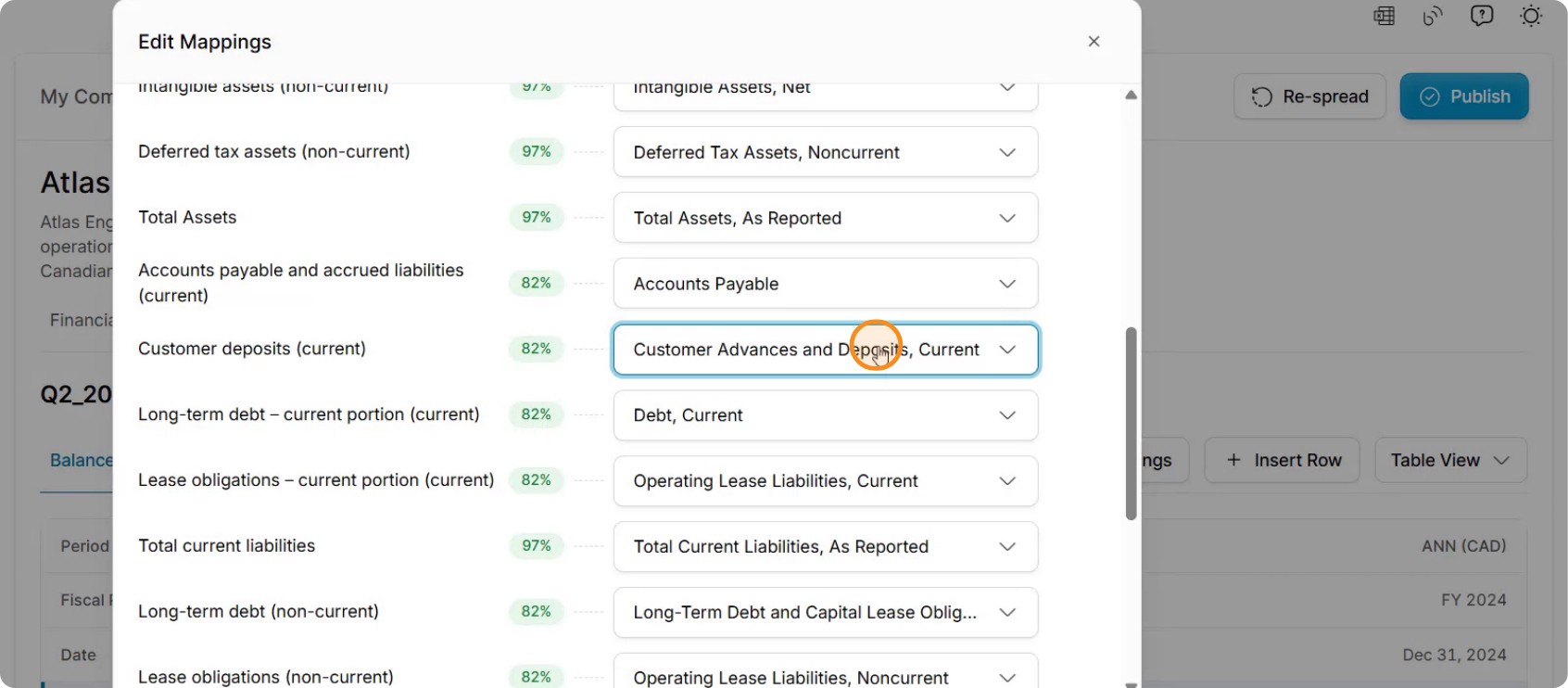
Choose the appropriate target line item on the balance sheet (ensuring it is mapped to the correct section, such as a current liability).
After selecting the correct destination, save the mapping changes.
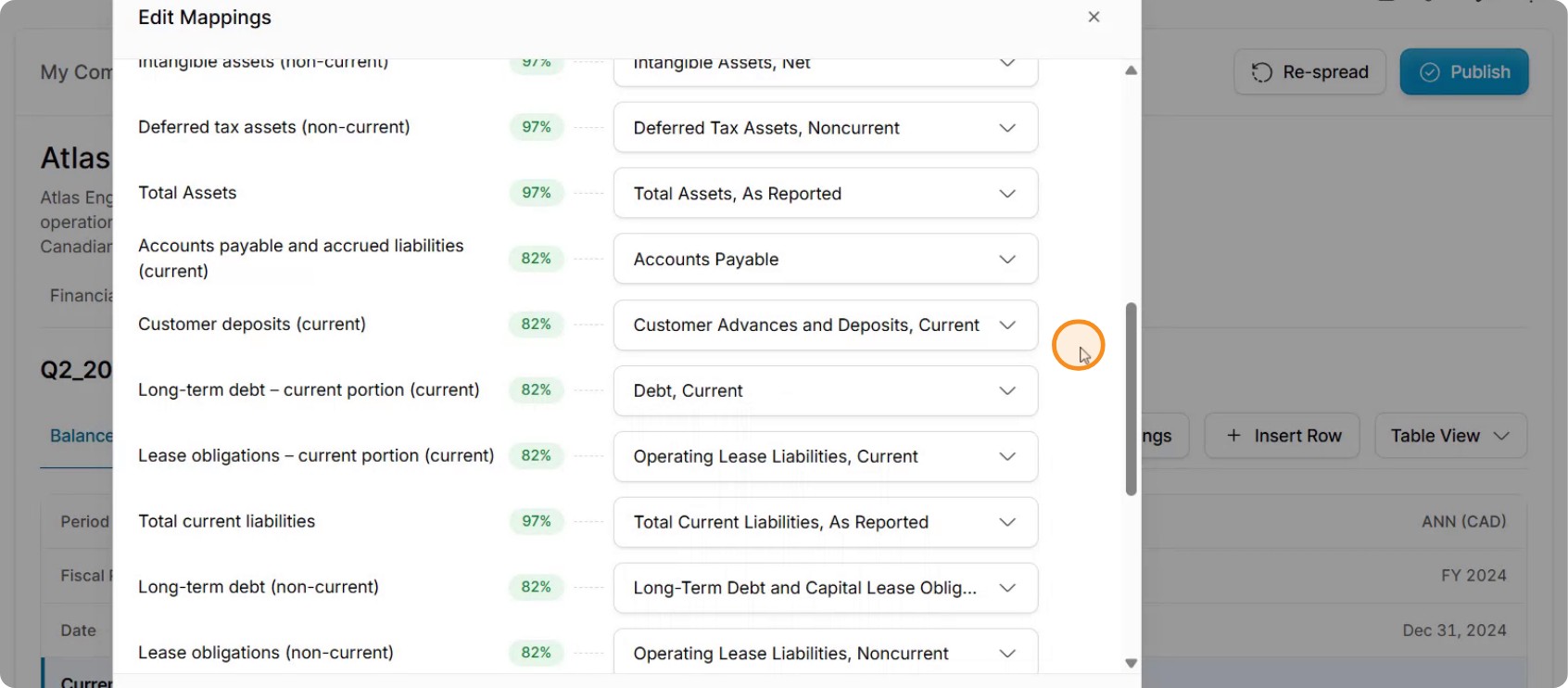
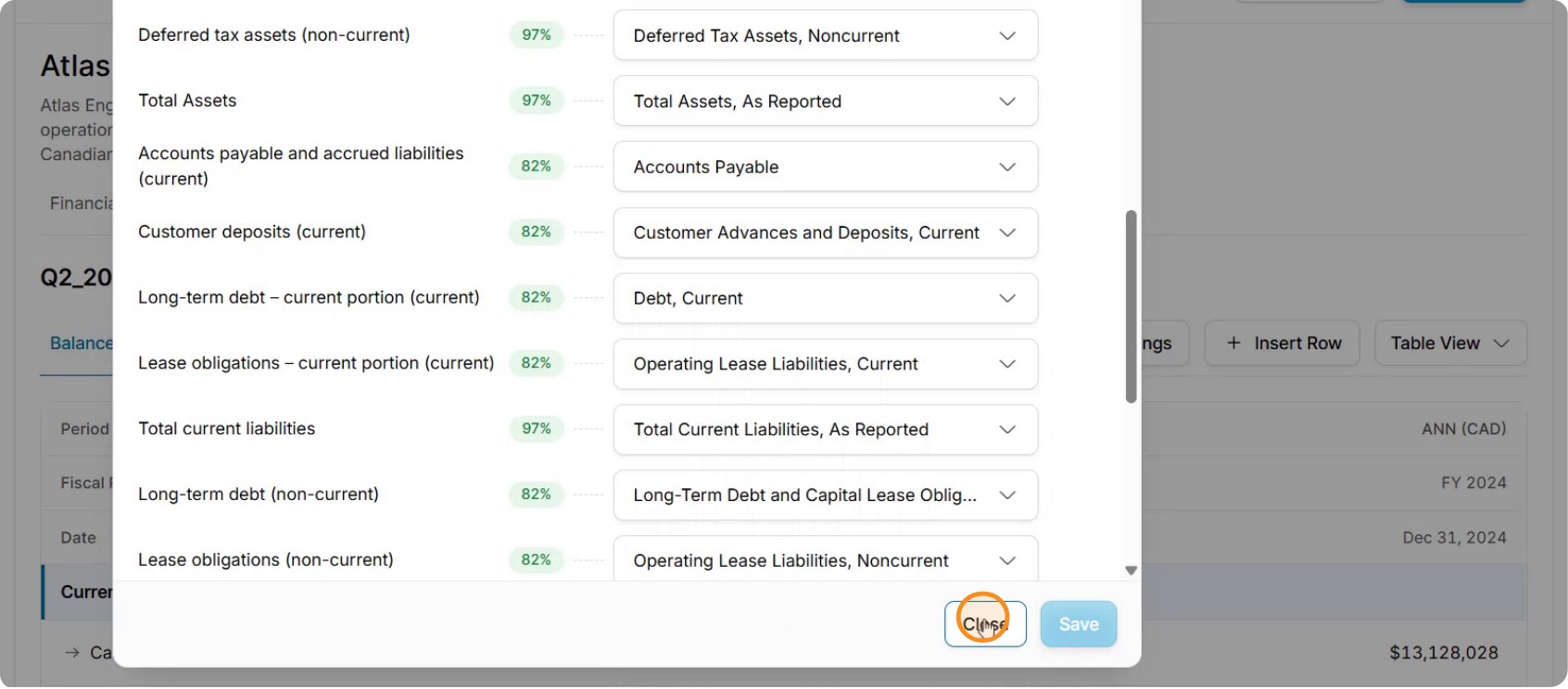
Verify that the remapped item now appears in the correct category and that the error is resolved. The system will remember this updated mapping for future processed financials, applying the corrected mapping automatically.
Next articleSearch: TagniFi Search Overview