
Spread
Updated Sep 1, 2026Creating and Customizing Layouts
Creating and Customizing Layouts
This document explains how to create a customized layout by cloning an existing one (e.g., “TagniFi Fundamentals”) and then adding or modifying line items such as a restaurant-specific “Food Costs” expense. It also covers updating calculated fields, saving, and publishing the new layout so it can be used when adding companies.
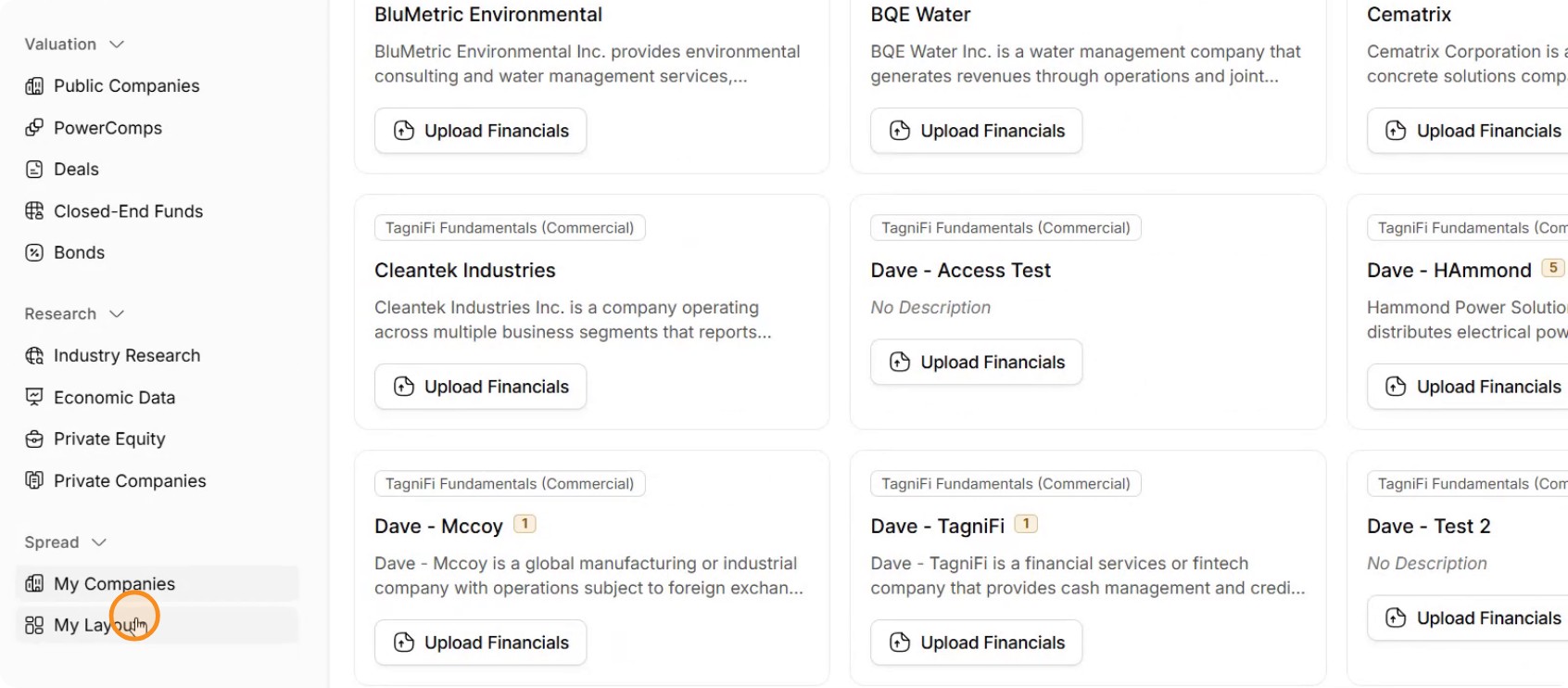
Step 1: Open the Layouts Section
Go to the Layout section on the left side of the application to begin working with layouts.
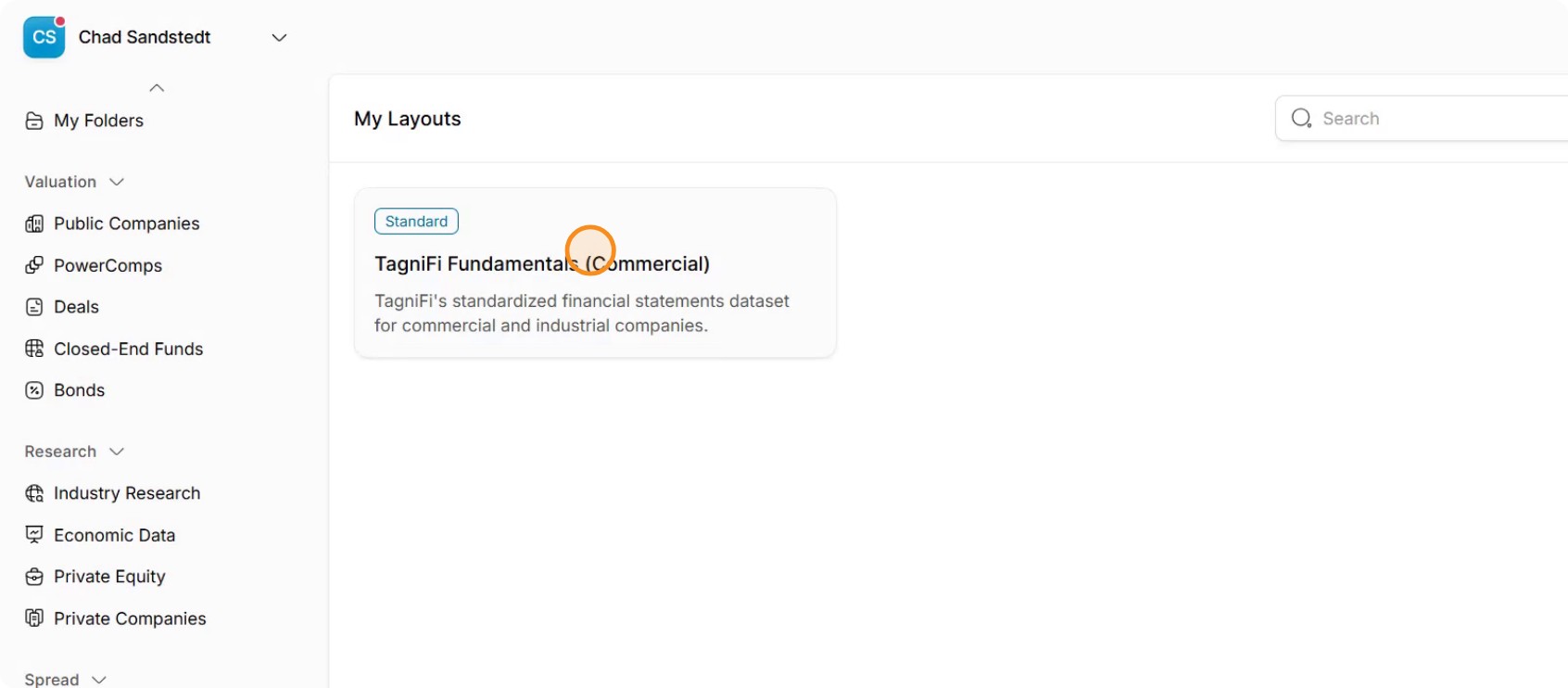
Step 2: Choose a Base Layout to Clone
Select an existing layout to use as your starting point, such as TagniFi Fundamentals, which already includes standard checks, balance checks, and common line items like revenue and expenses.
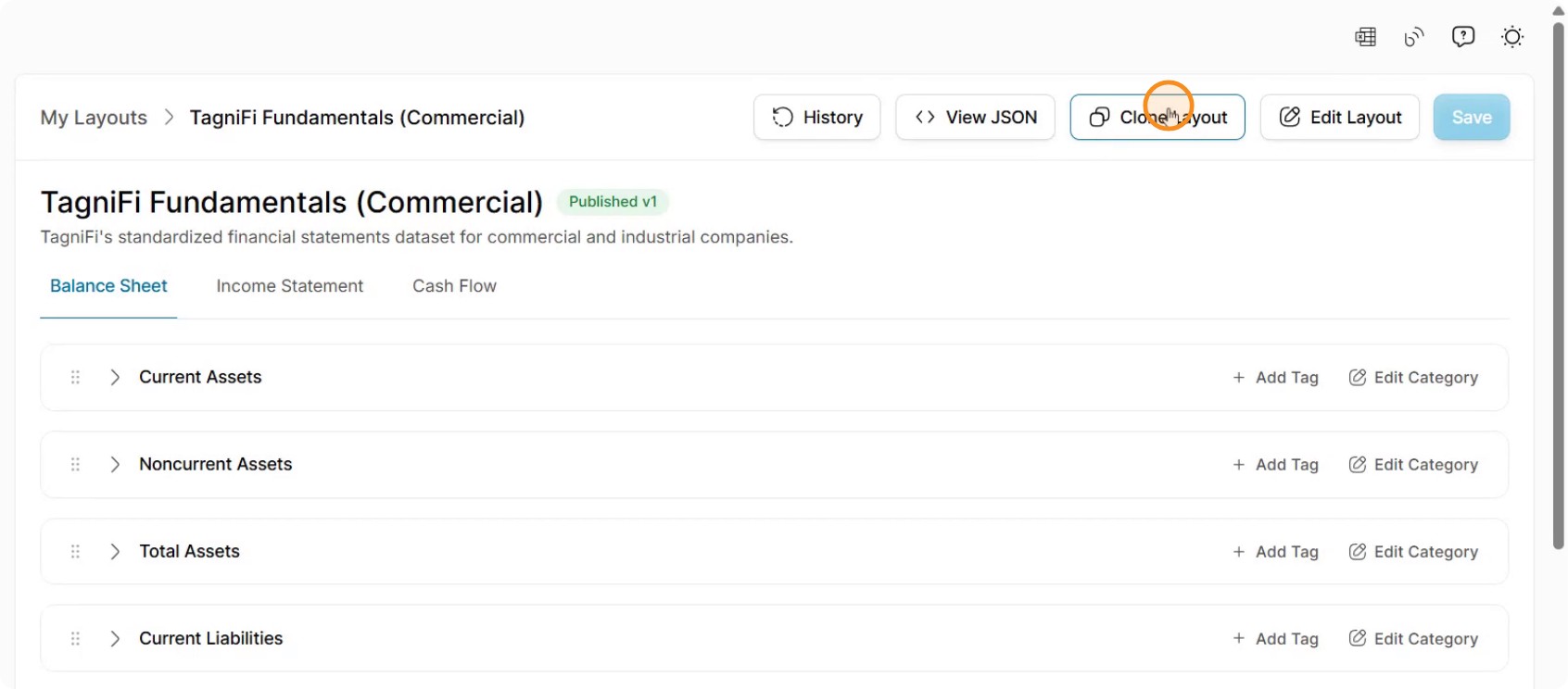
Step 3: Clone the Selected Layout
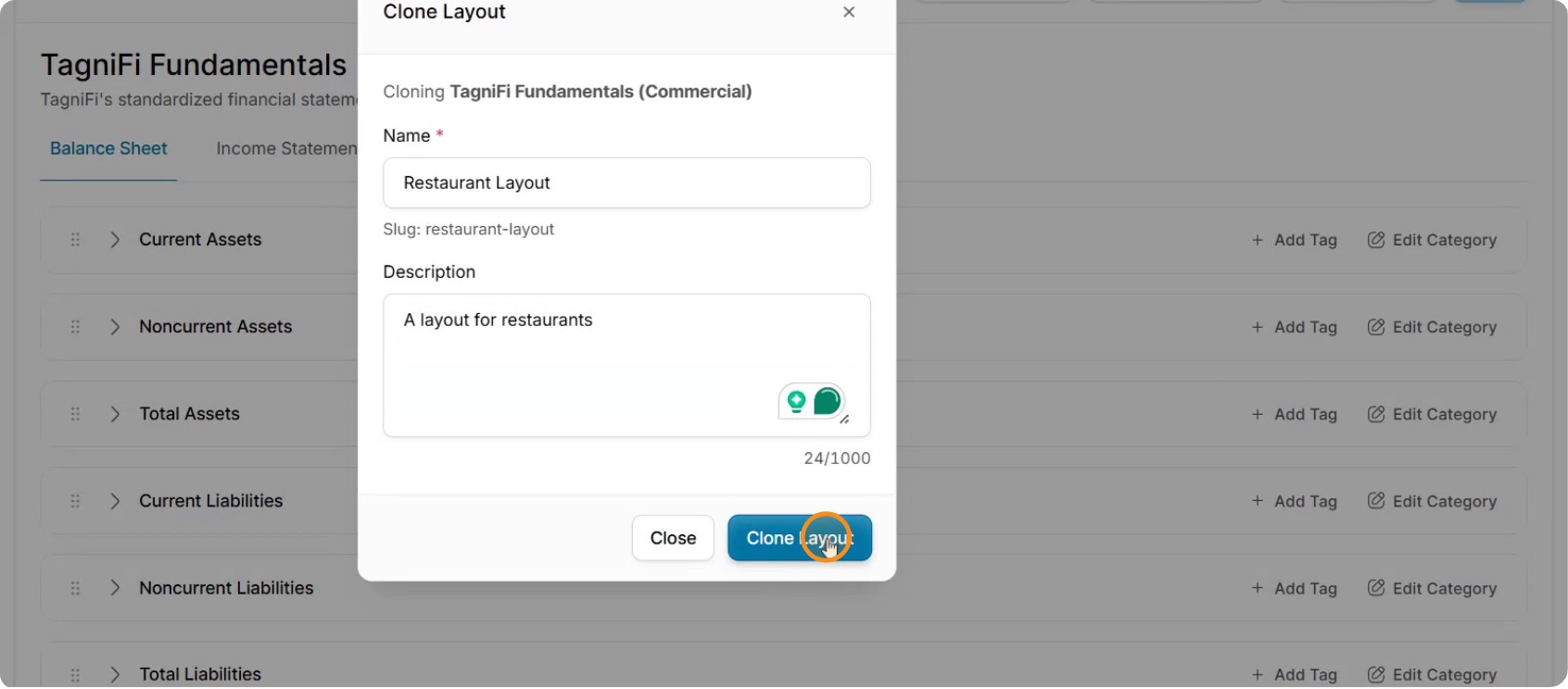
Click Clone Layout to create a copy of the selected layout.
In the cloning dialog that appears, you can now define the details of your new layout.
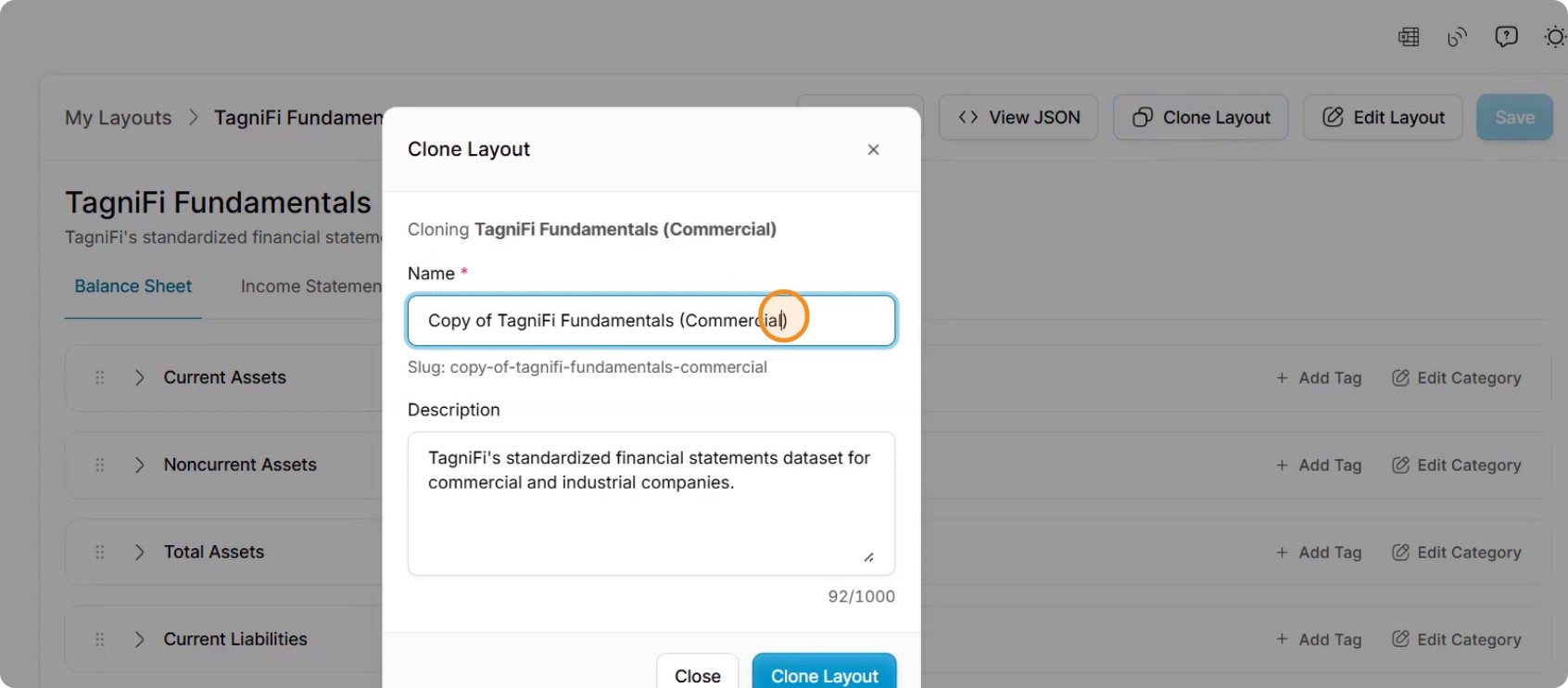
Step 4: Name and Describe the New Layout
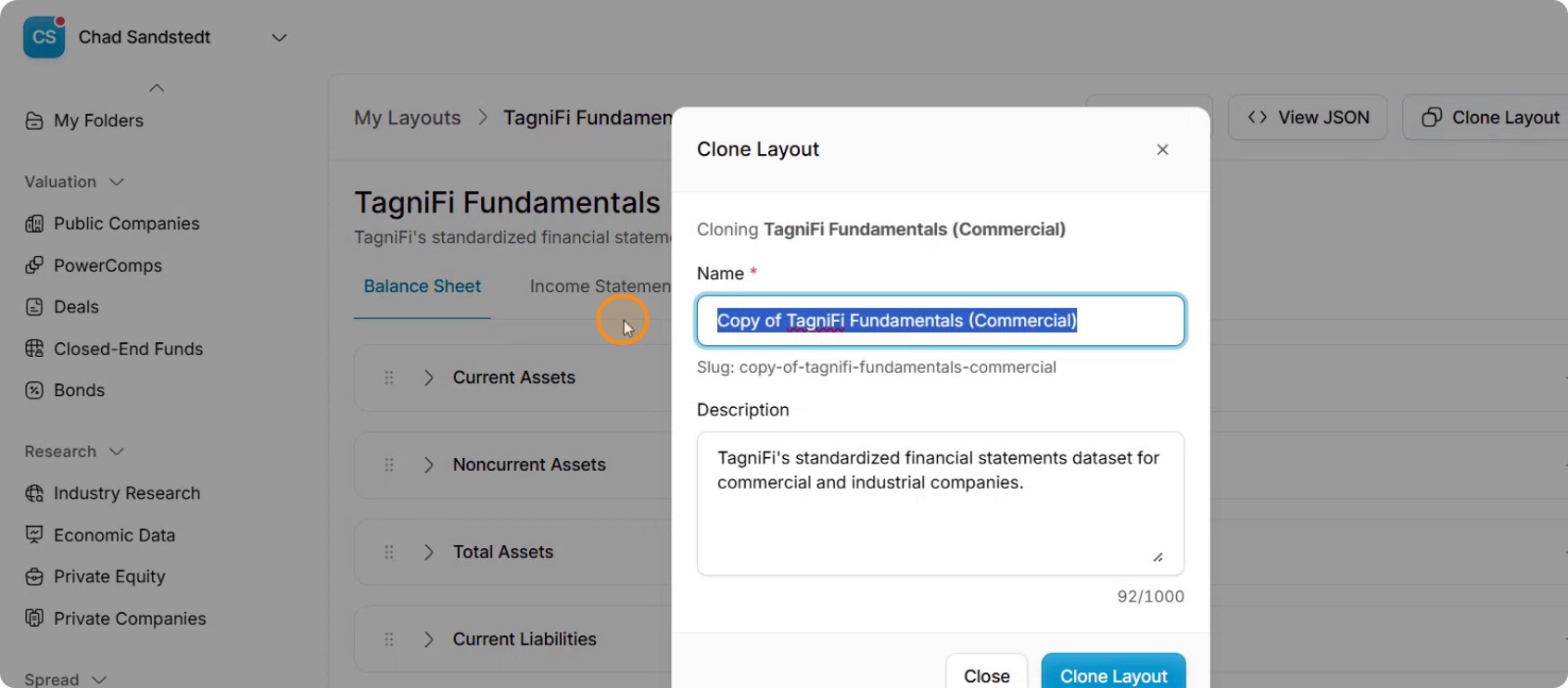
Enter a clear, descriptive name for your new layout.
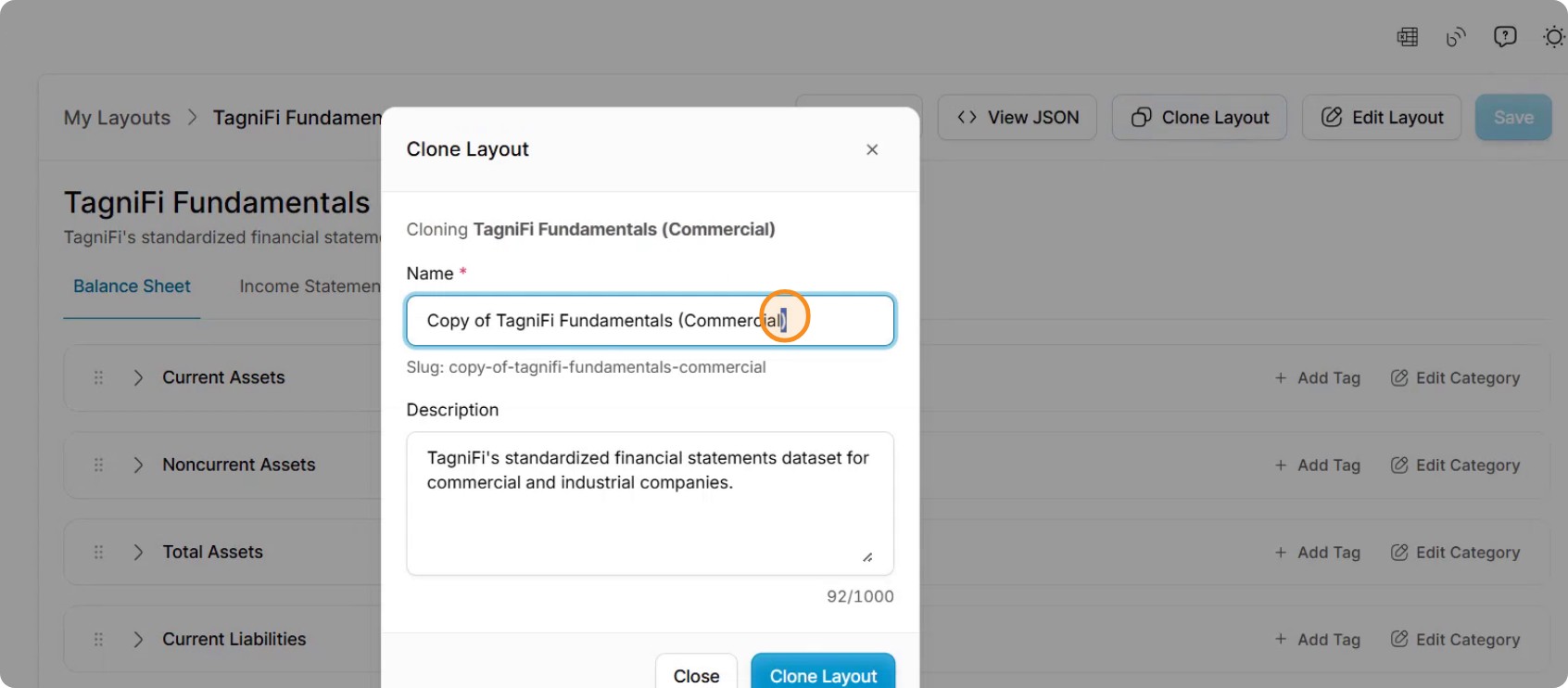
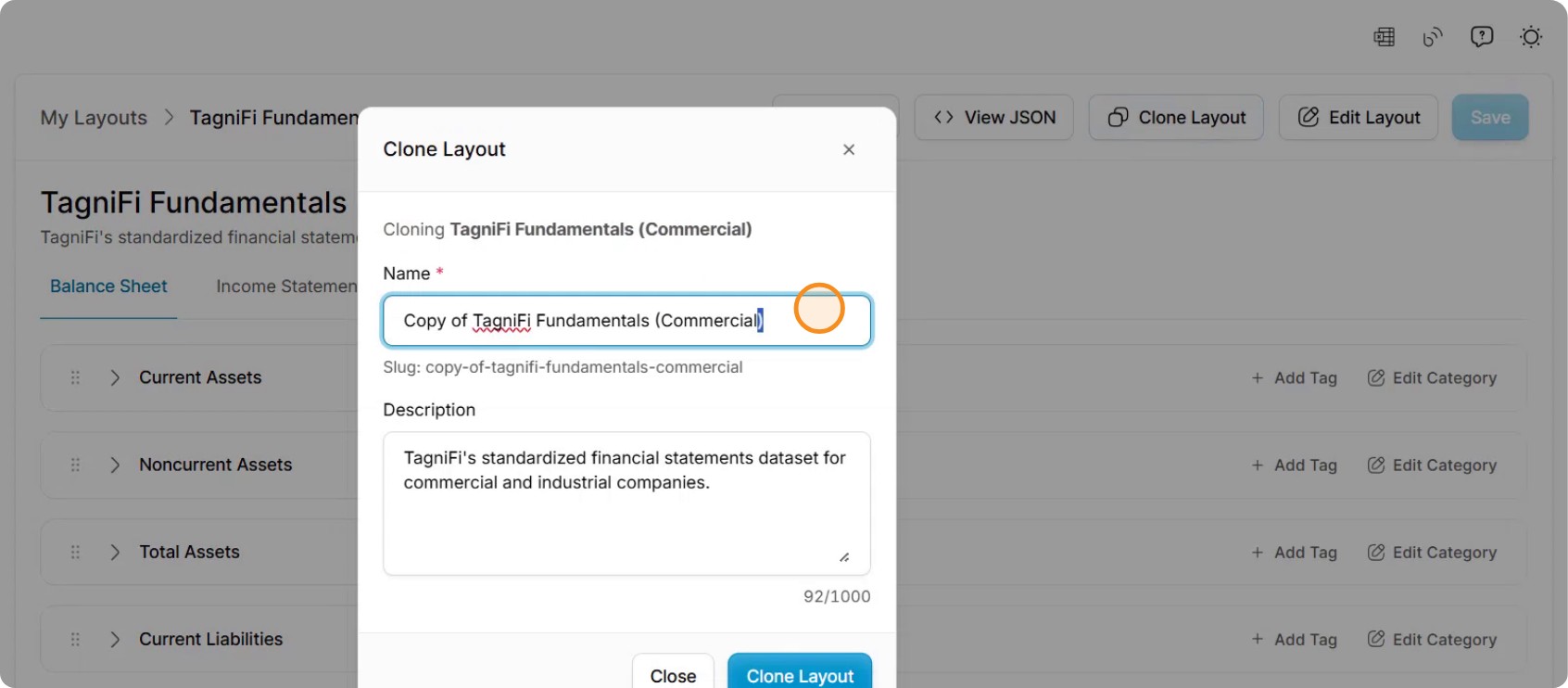
For example, you might name it Restaurant Layout if you frequently work with restaurant clients.
Optionally, add a description or notes, such as “A layout for restaurants,” to clarify its intended use.
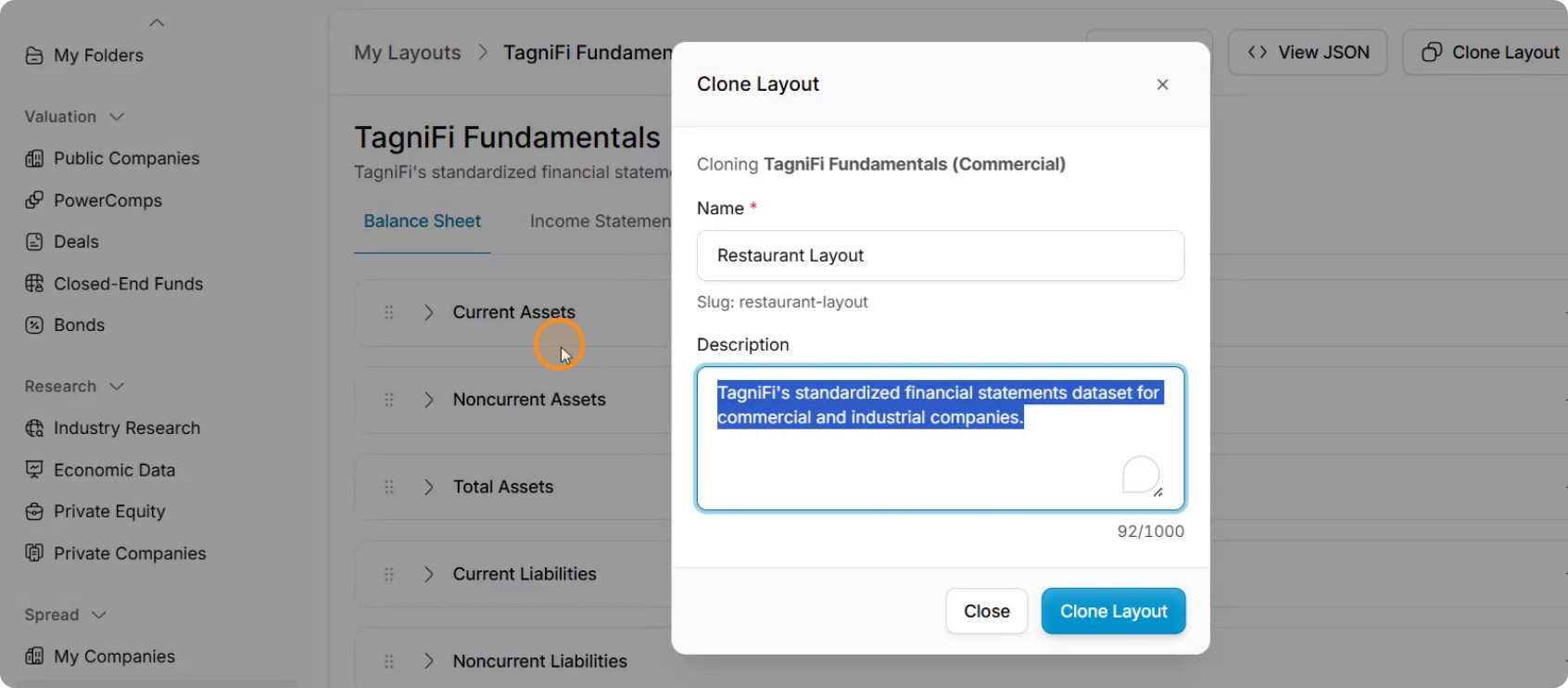
When you are done, confirm to clone the layout.
Step 5: Customize Line Items in the New Layout
Open your newly cloned layout. It will contain all of the existing checks, balance checks, and standard line items from TagniFi Fundamentals, but you can now customize it.
Navigate to the section where you want to add new line items (for example, operating expenses) and begin adding any additional items that are needed but not present in the base layout.
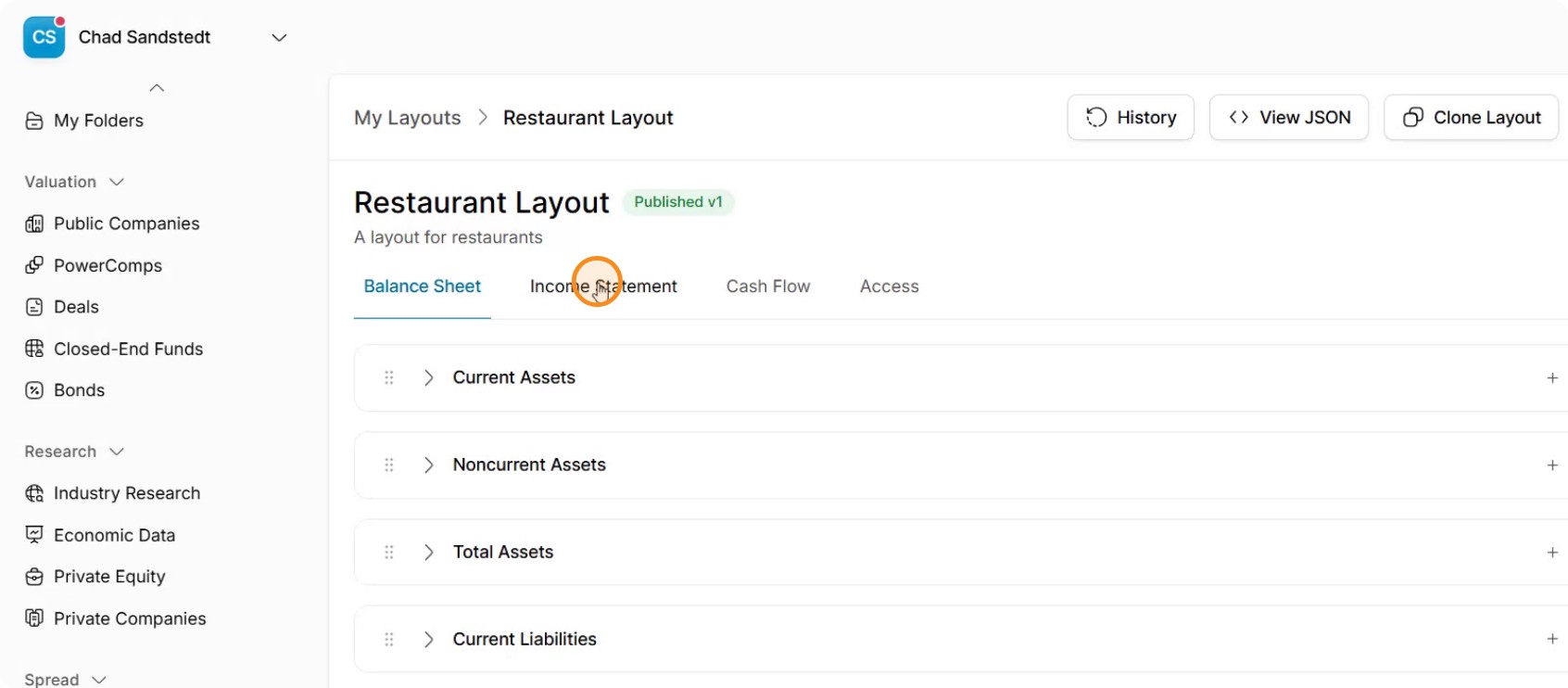
For instance, you may want to add Food Costs as a new operating expense line item.
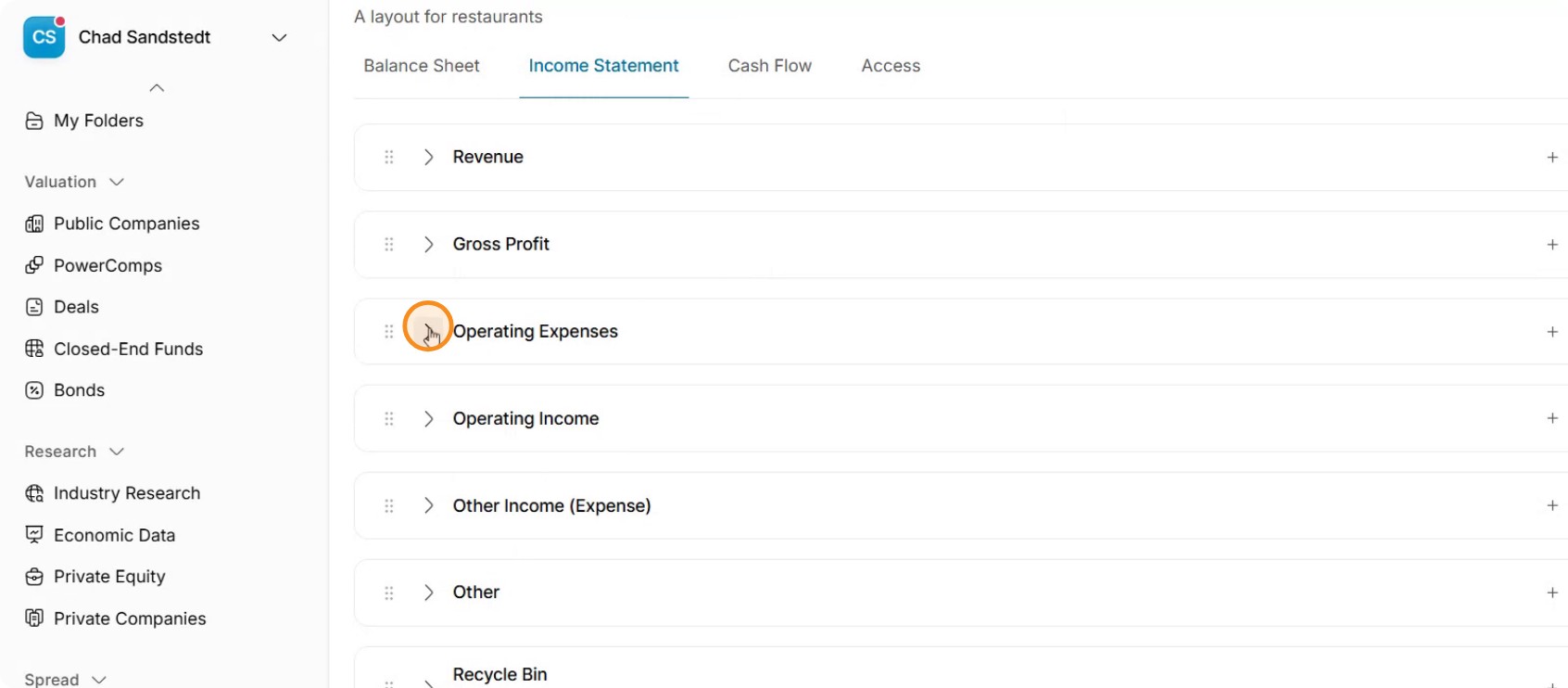
Step 6: Add a New Tag for the Custom Line Item
Use the interface option to add a tag for the new line item.
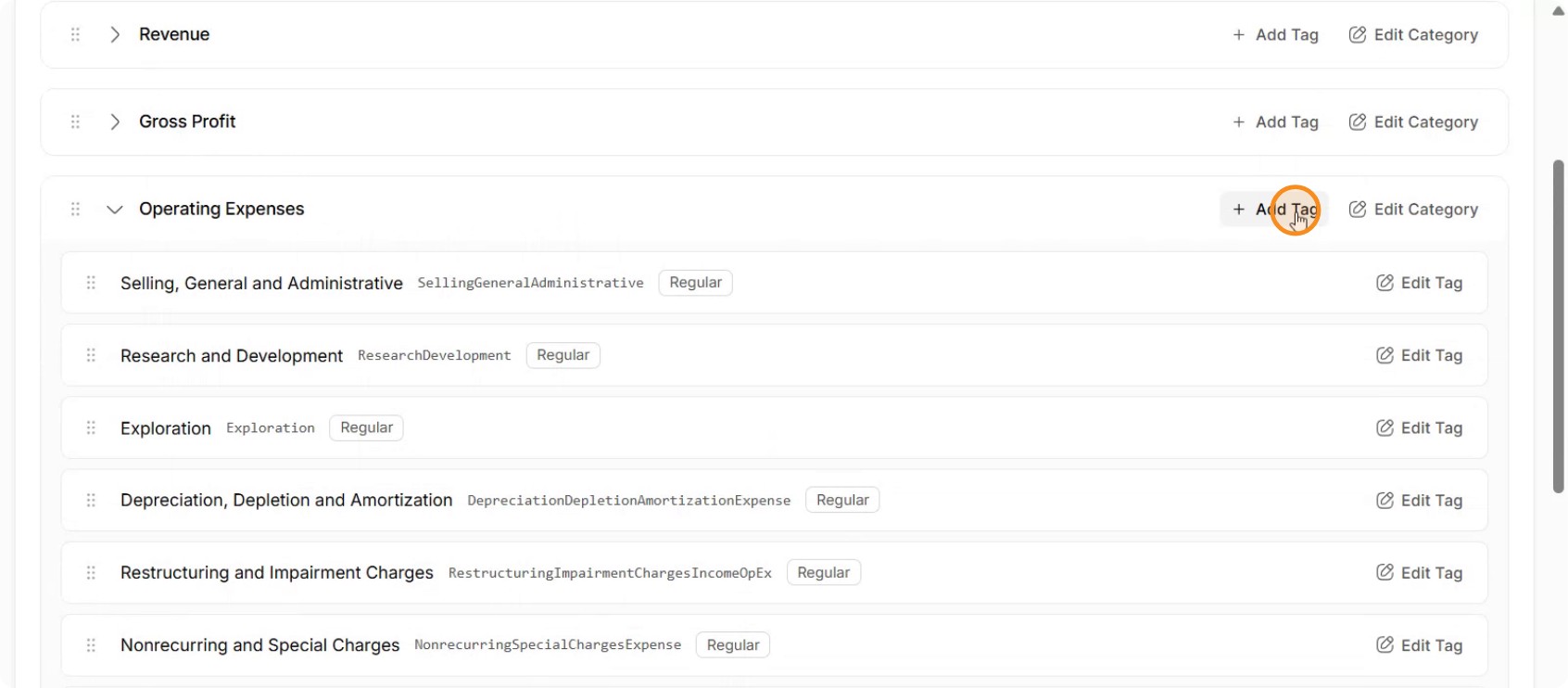
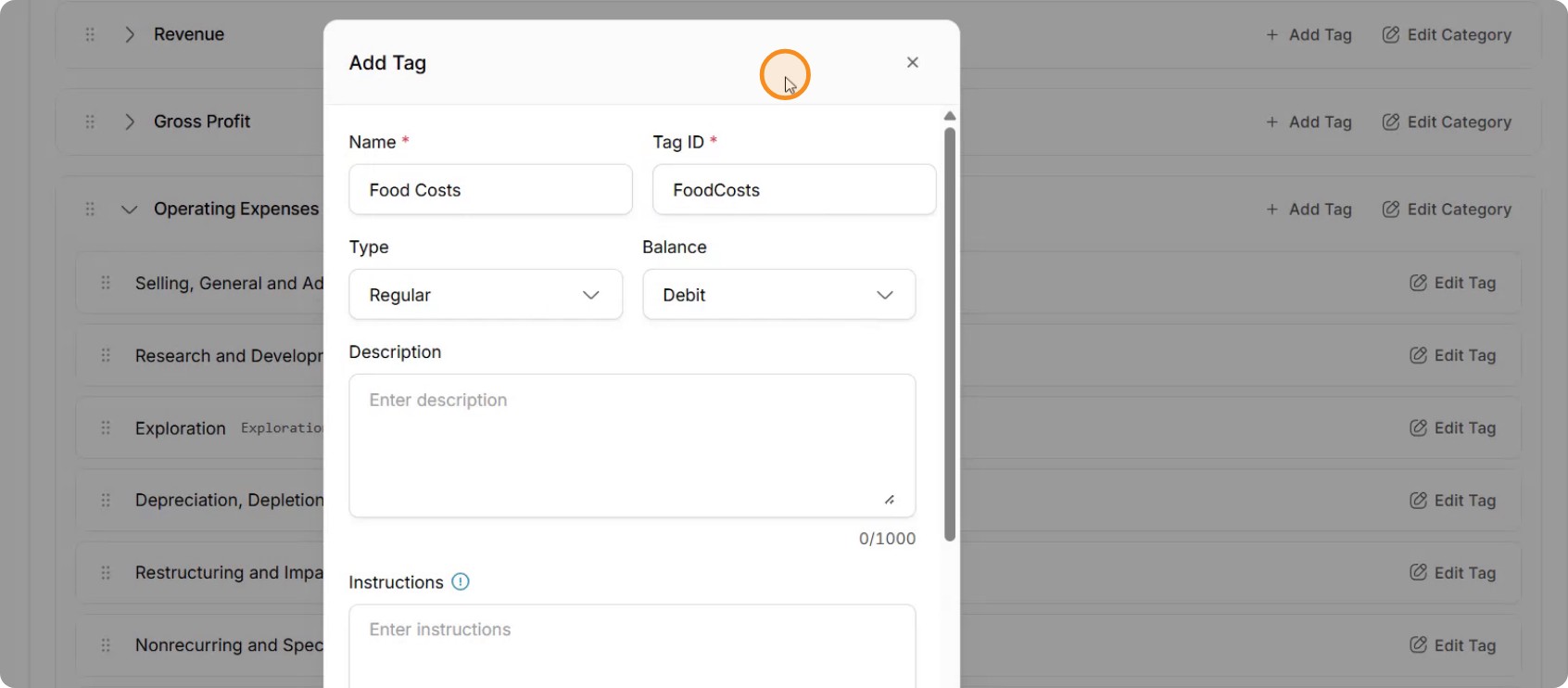
Name the tag clearly, such as Food Costs.
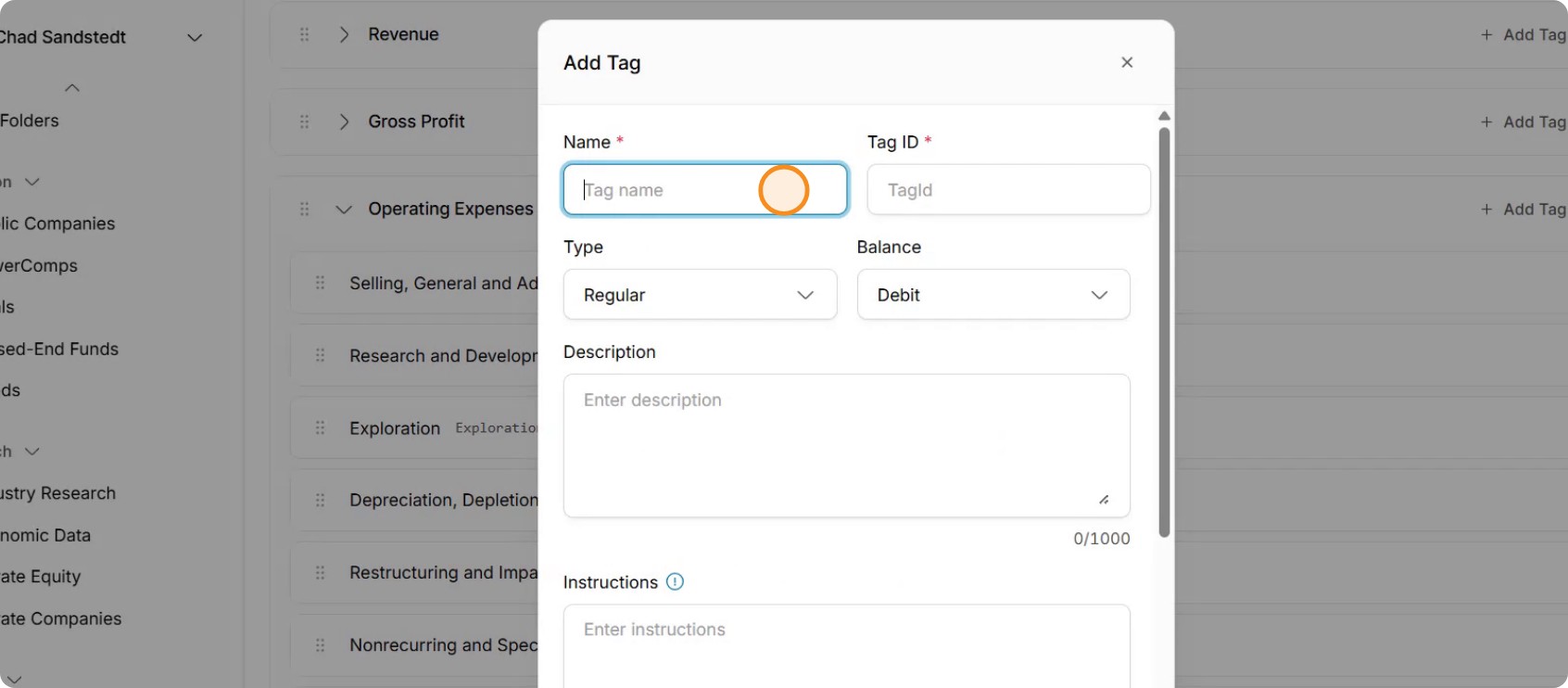
Review the automatically assigned ID. Since this is an expense item, leave its type set to Debit.
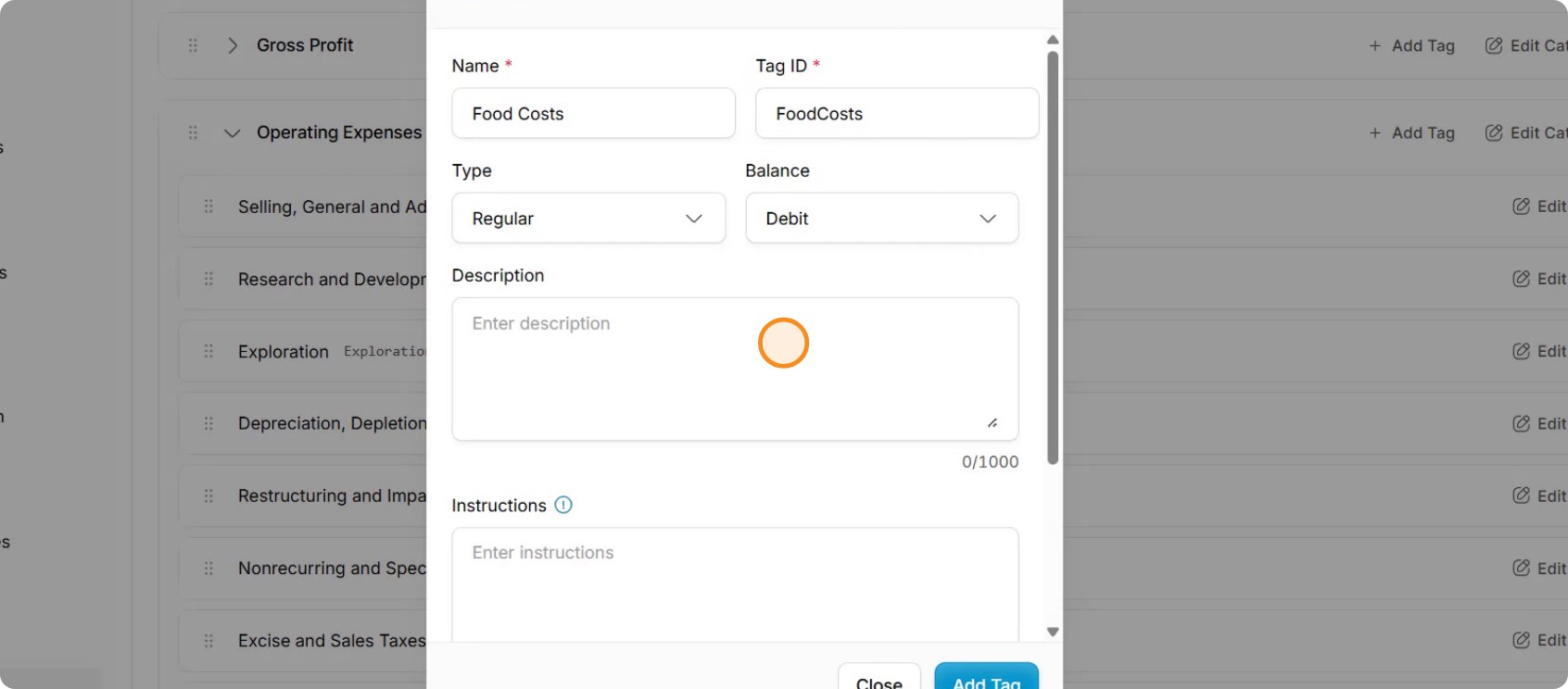
Provide a brief description, for example: “Food and related costs.”
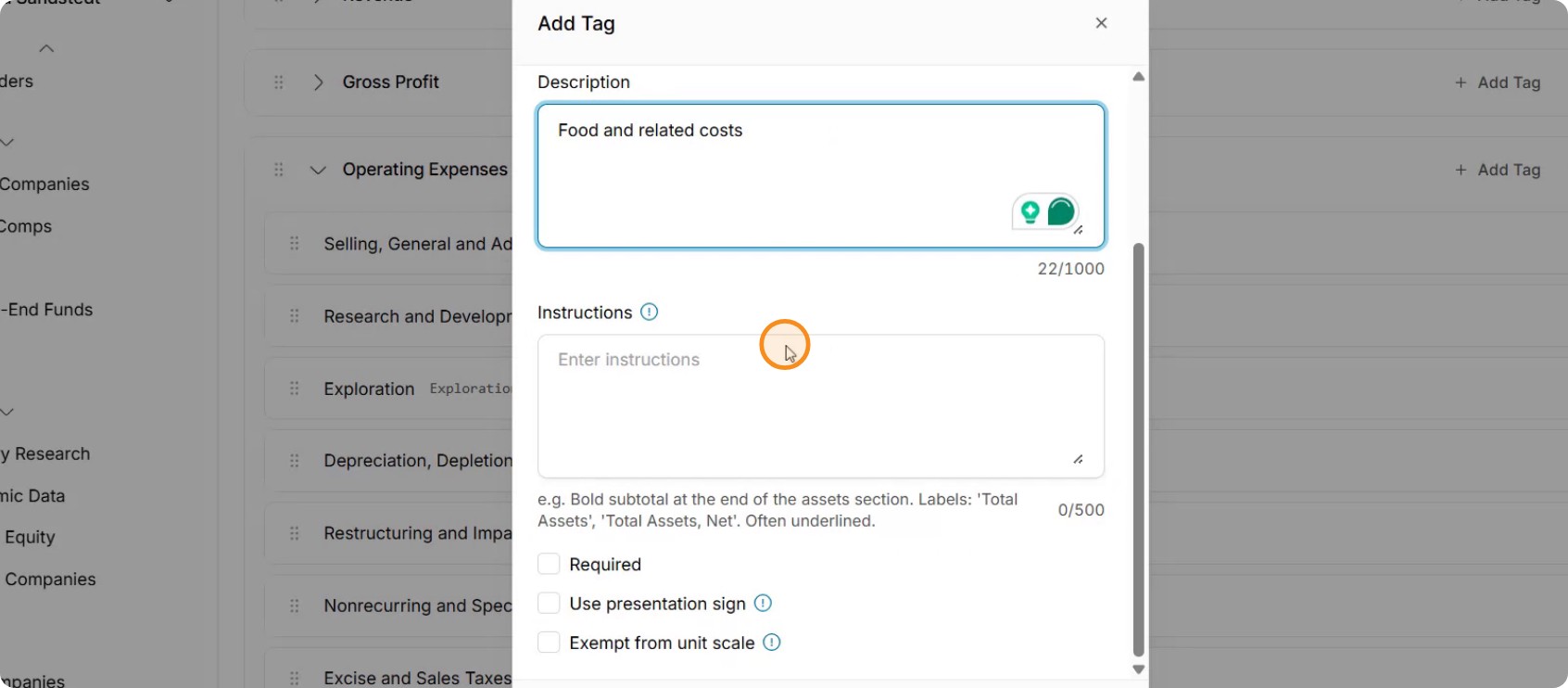
Optionally, add custom instructions if you want to specify exactly what should be captured under this line item or which sections it should cover.
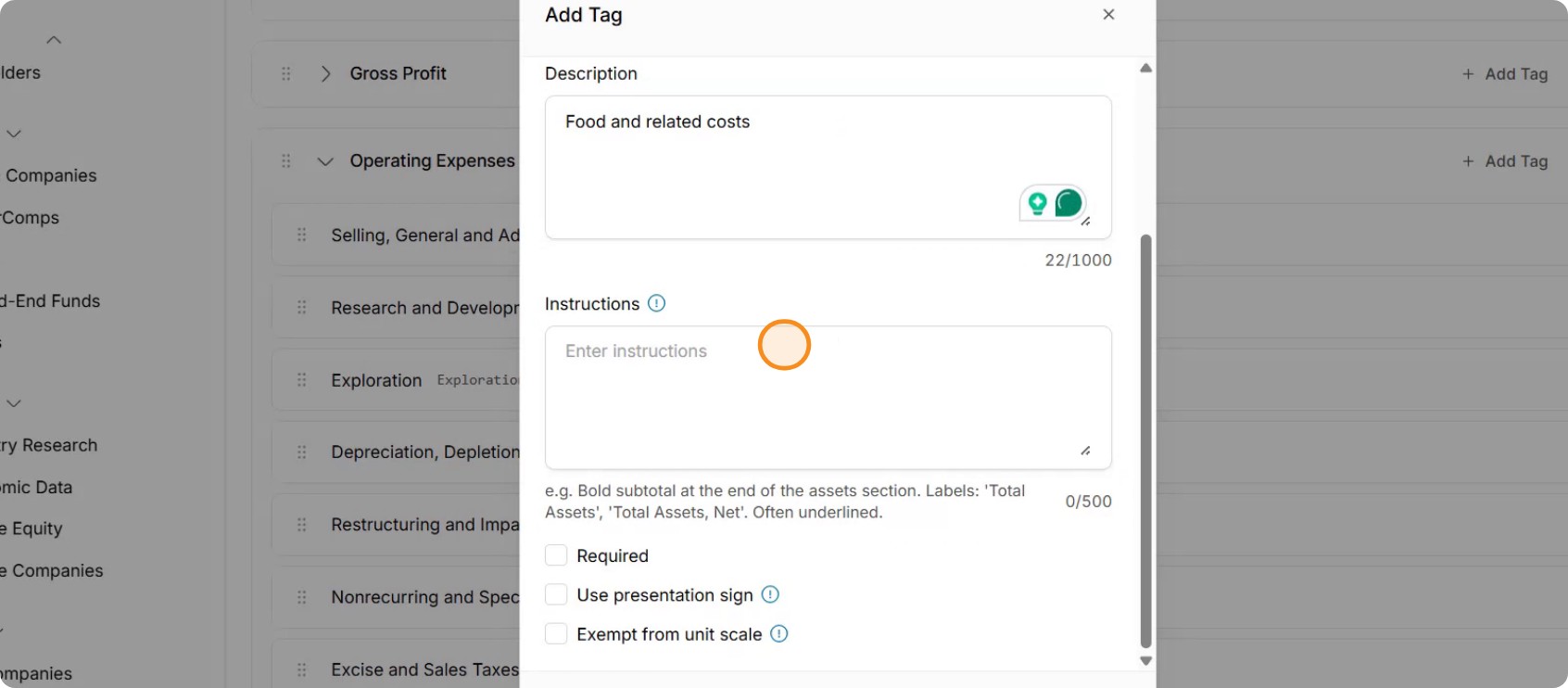
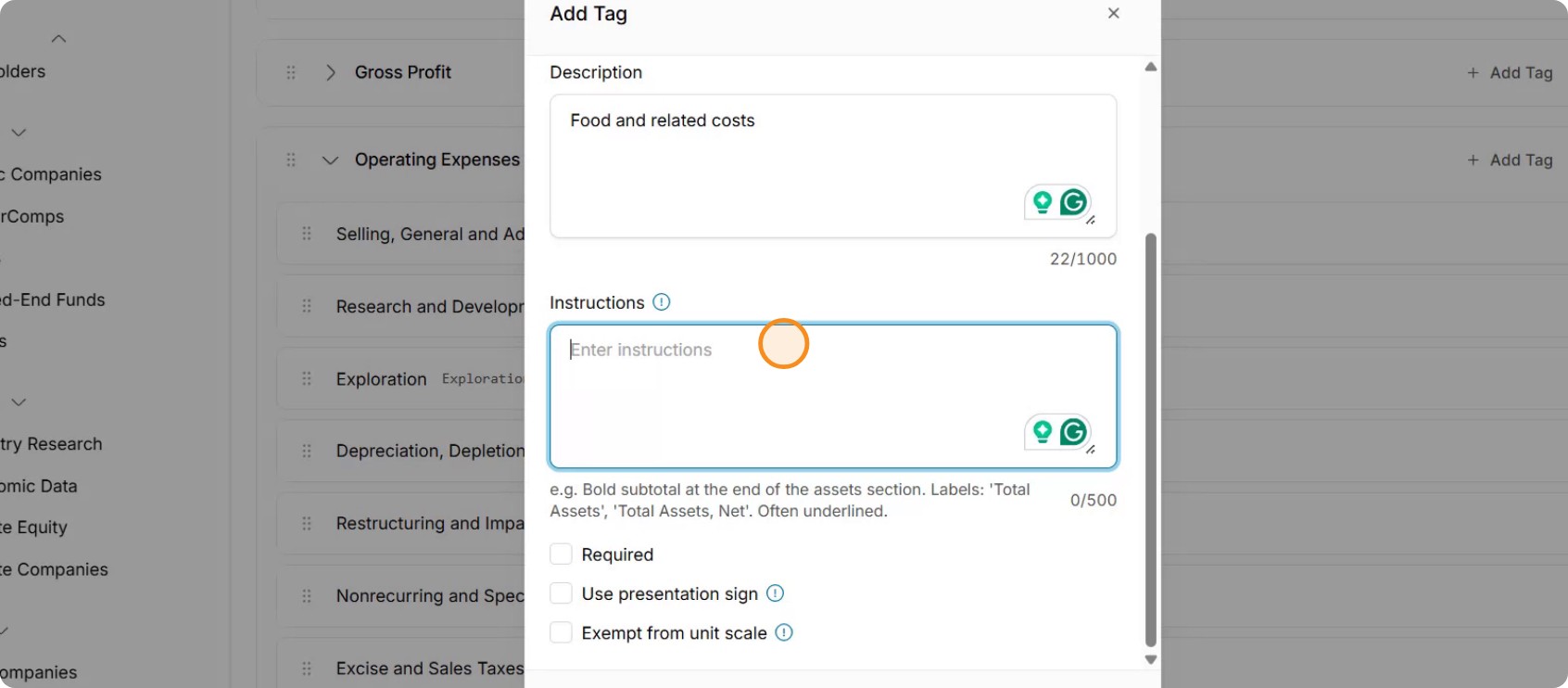
Decide whether the field should be required. In this example, not all restaurant companies may have separate food cost line items, so it may remain optional. When finished, click Add Tag to create the line item.
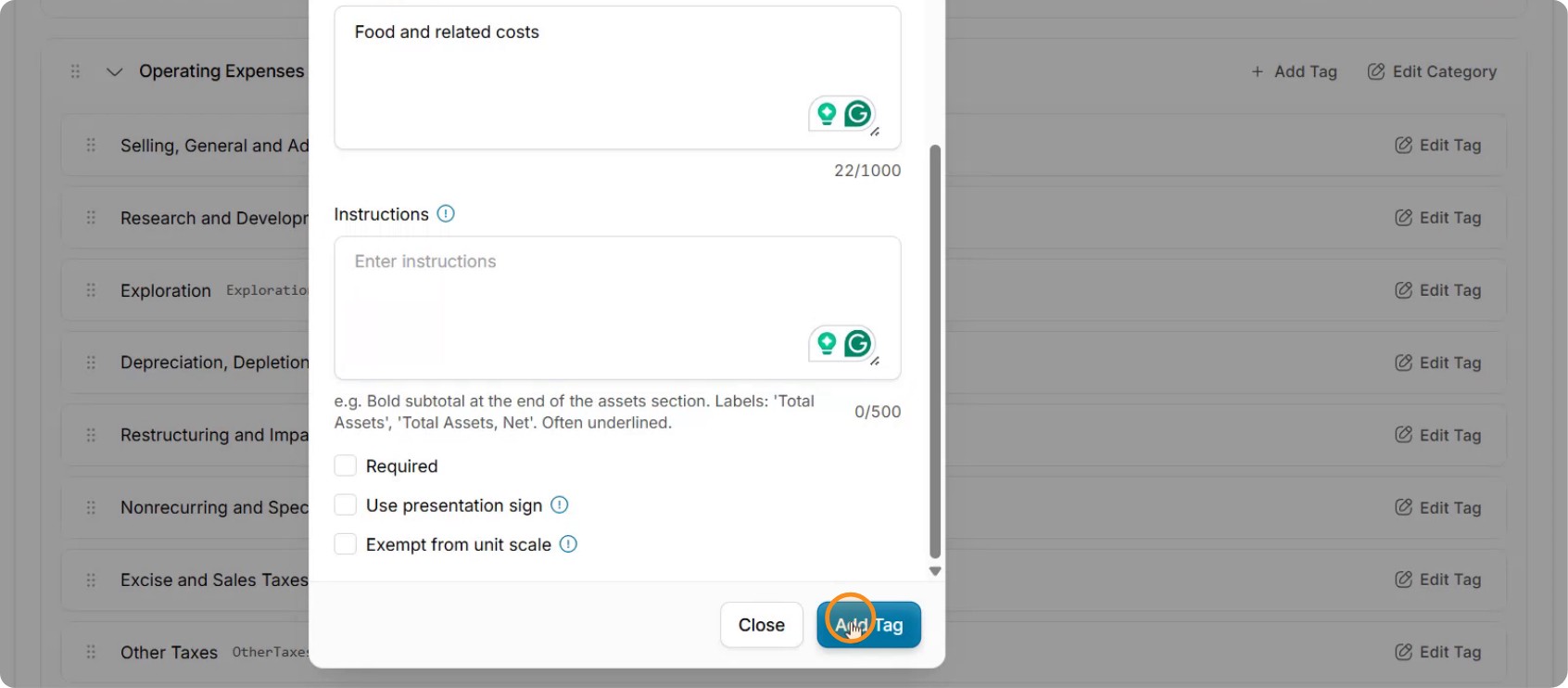
After adding it, verify that Food Costs appears in the operating expenses section. If needed, drag and drop it to rearrange the order—e.g., move it toward the top since food cost is typically a major expense for restaurants.
Step 7: Include the New Line Item in Calculated Fields
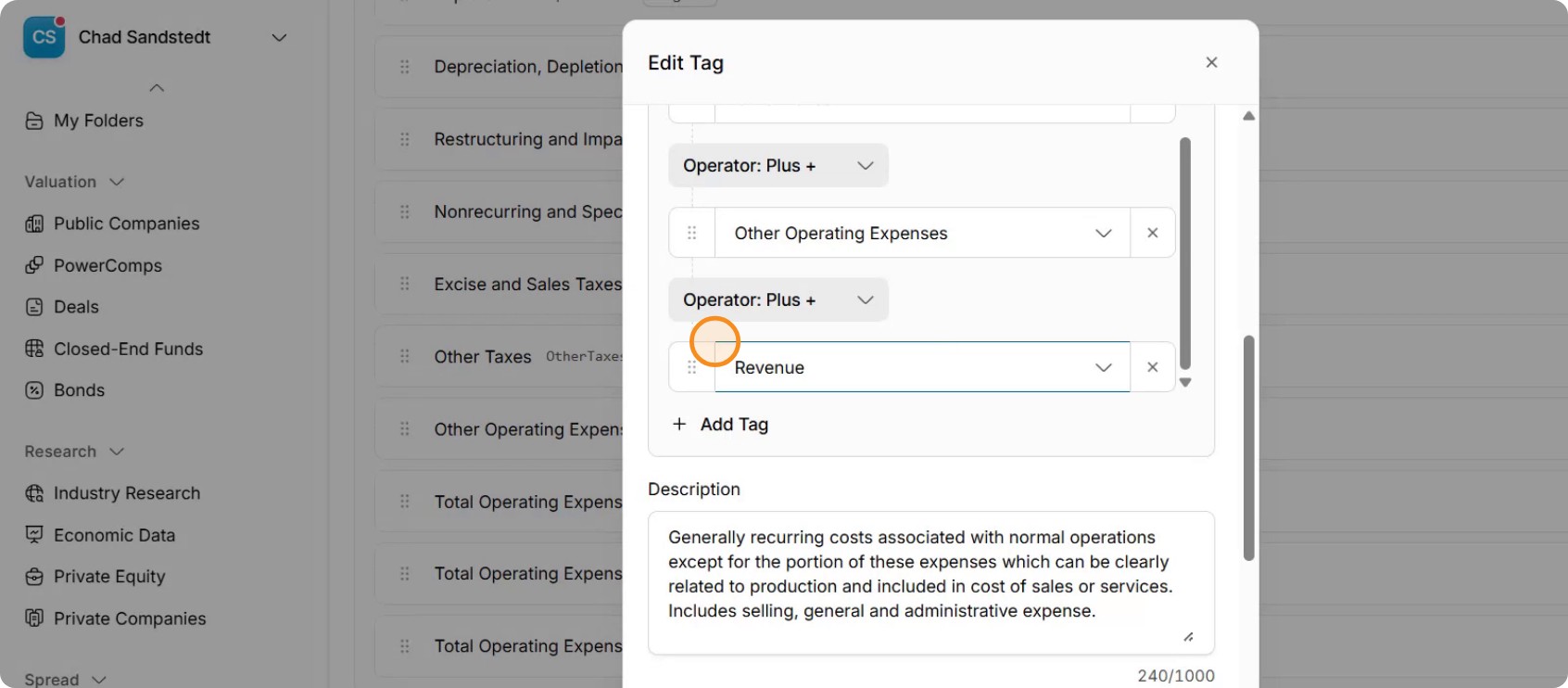
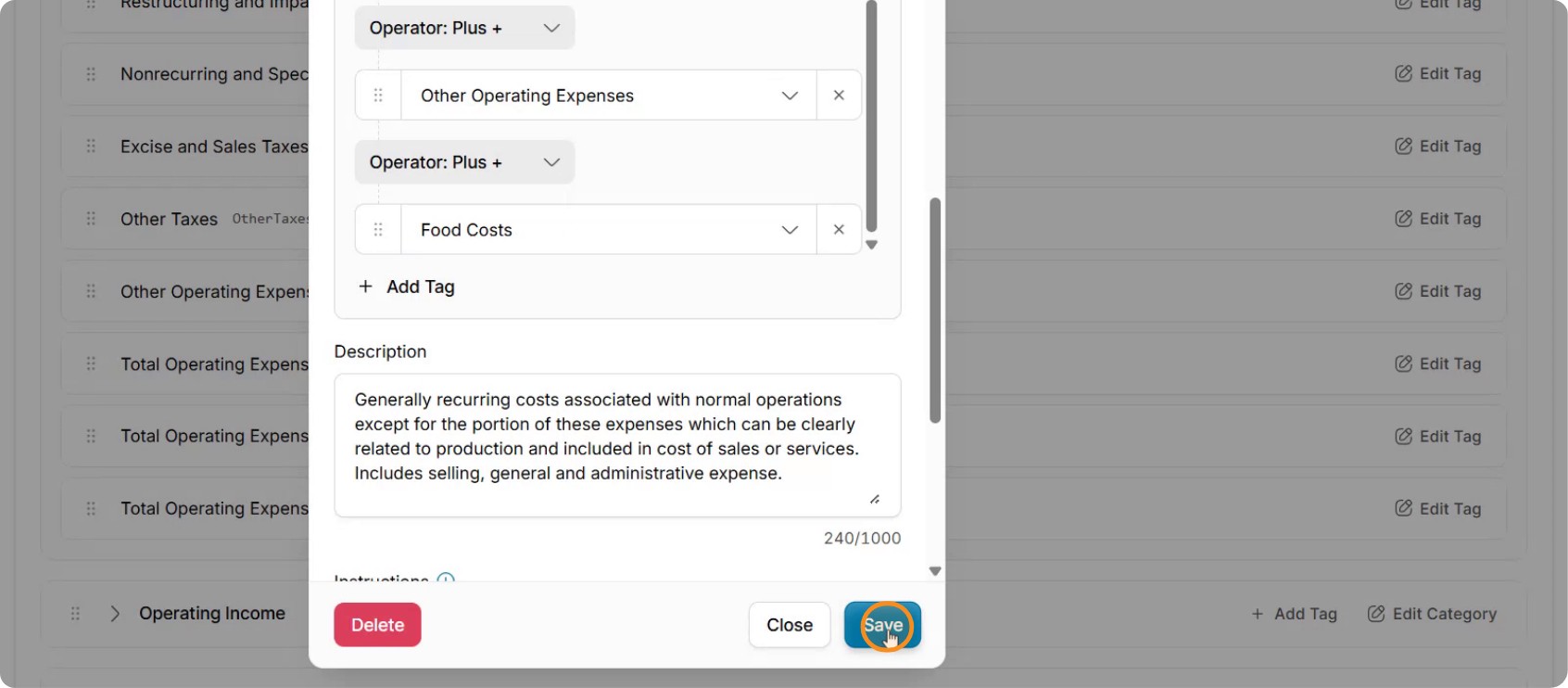
Update any relevant calculated fields so they include the new Food Costs line item. For example, ensure Total Operating Expenses now incorporates Food Costs, so all checks and totals remain accurate.
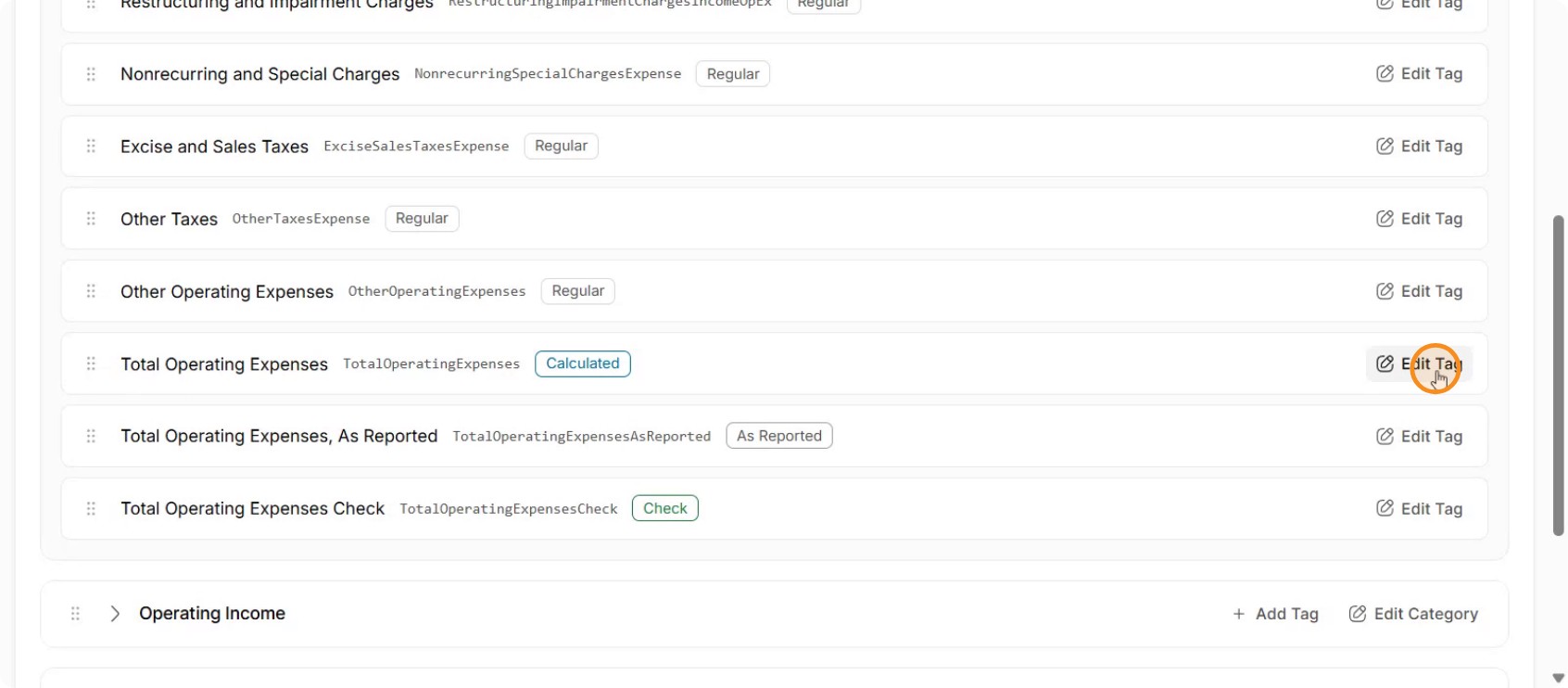
Confirm that the new line item is properly included in the calculation so that it flows correctly through the income statement.
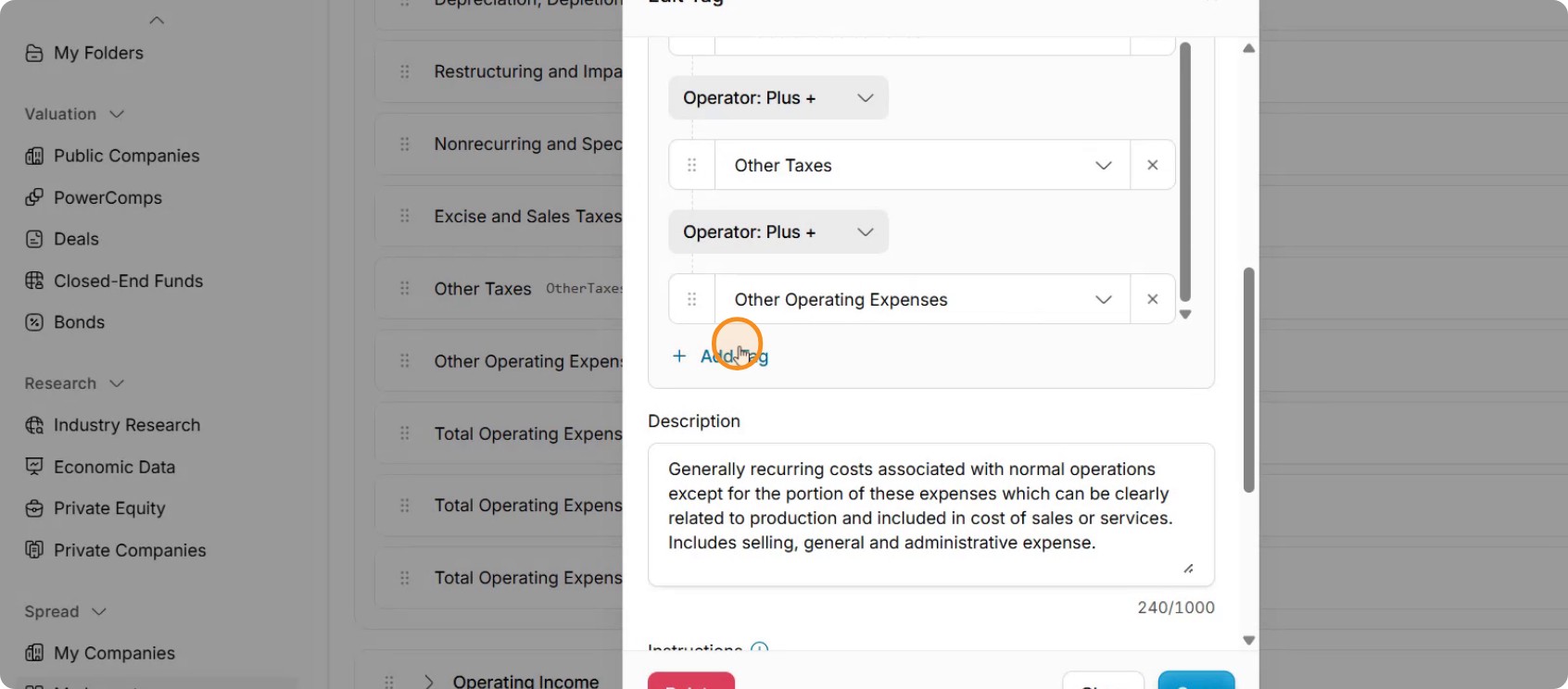
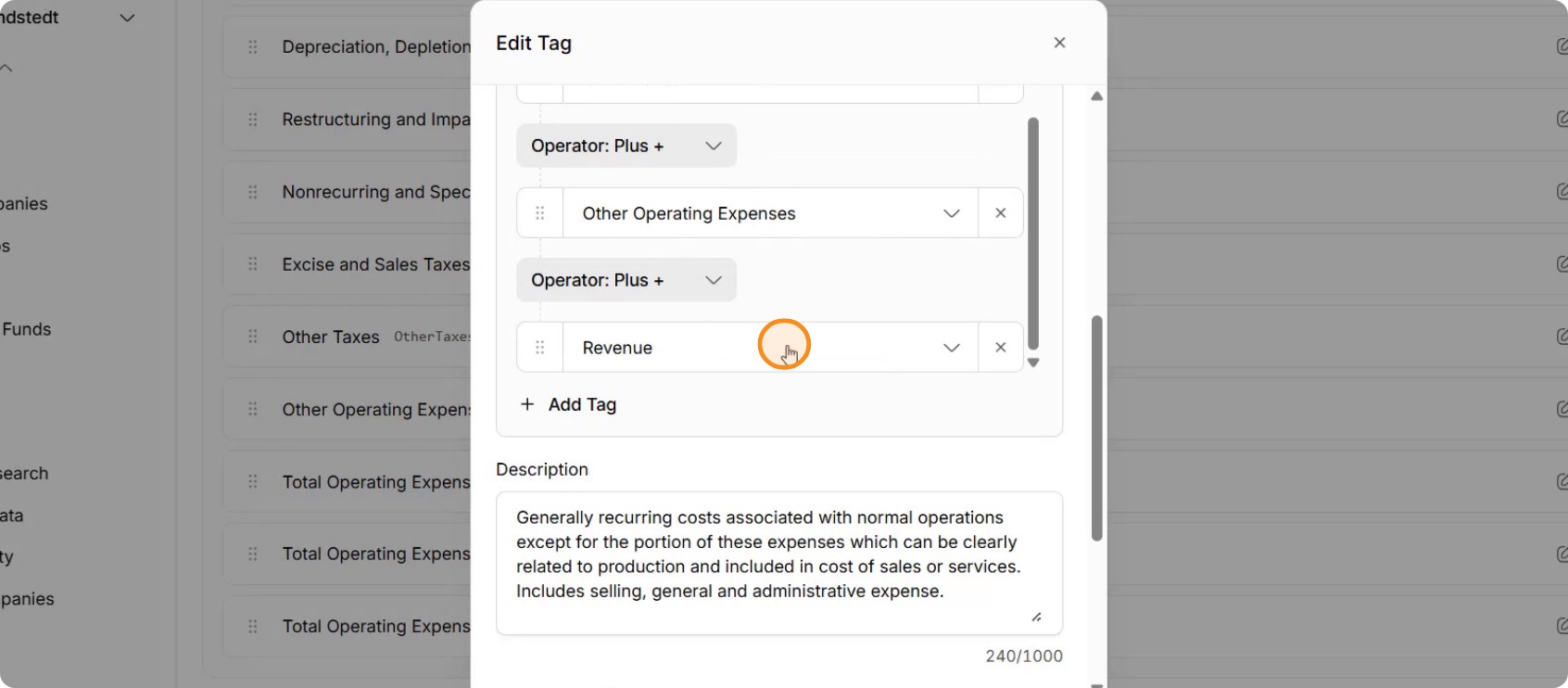
Locate Food Costs in the calculation editor and add it (e.g., as a plus component) to the Total Operating Expenses formula.
Click Save to apply the calculation changes.
Step 8: Save the Layout
Save the overall layout to capture all structural and calculation changes you have made.
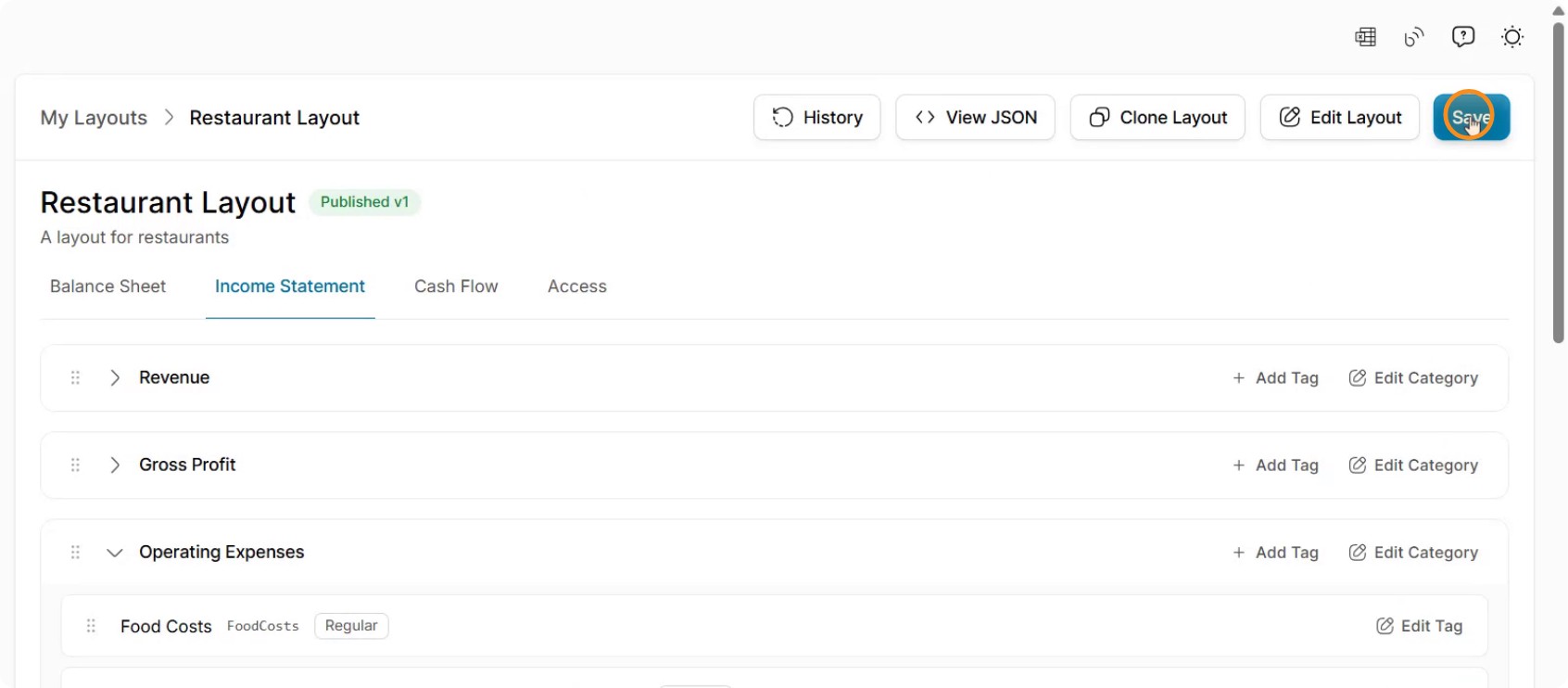
From this point forward, whenever you process or spread financials for a restaurant company, any amounts in the income statement corresponding to food costs will appear under the Food Costs line item in your restaurant layout.
Step 9: Publish the Layout for Use
When you are satisfied with the configuration, click Publish to make the layout available for use.
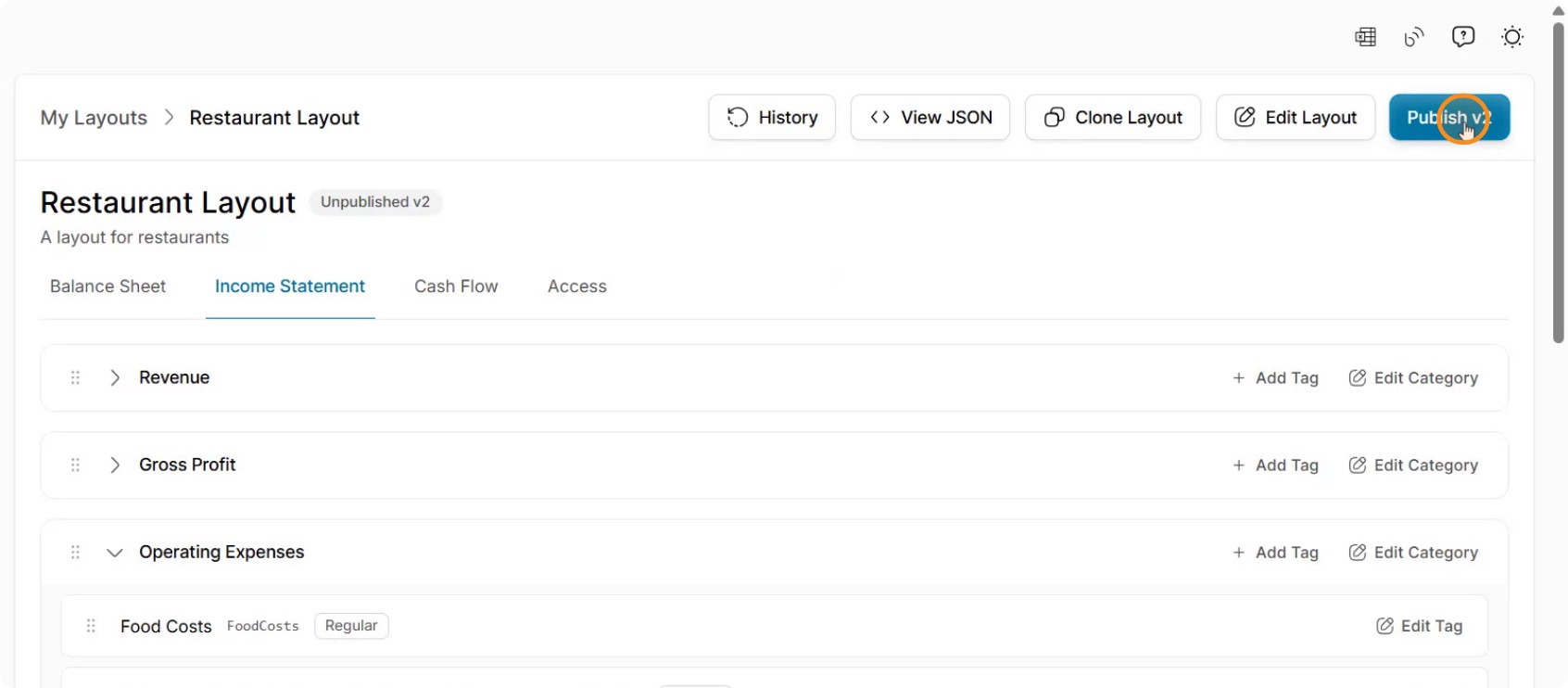
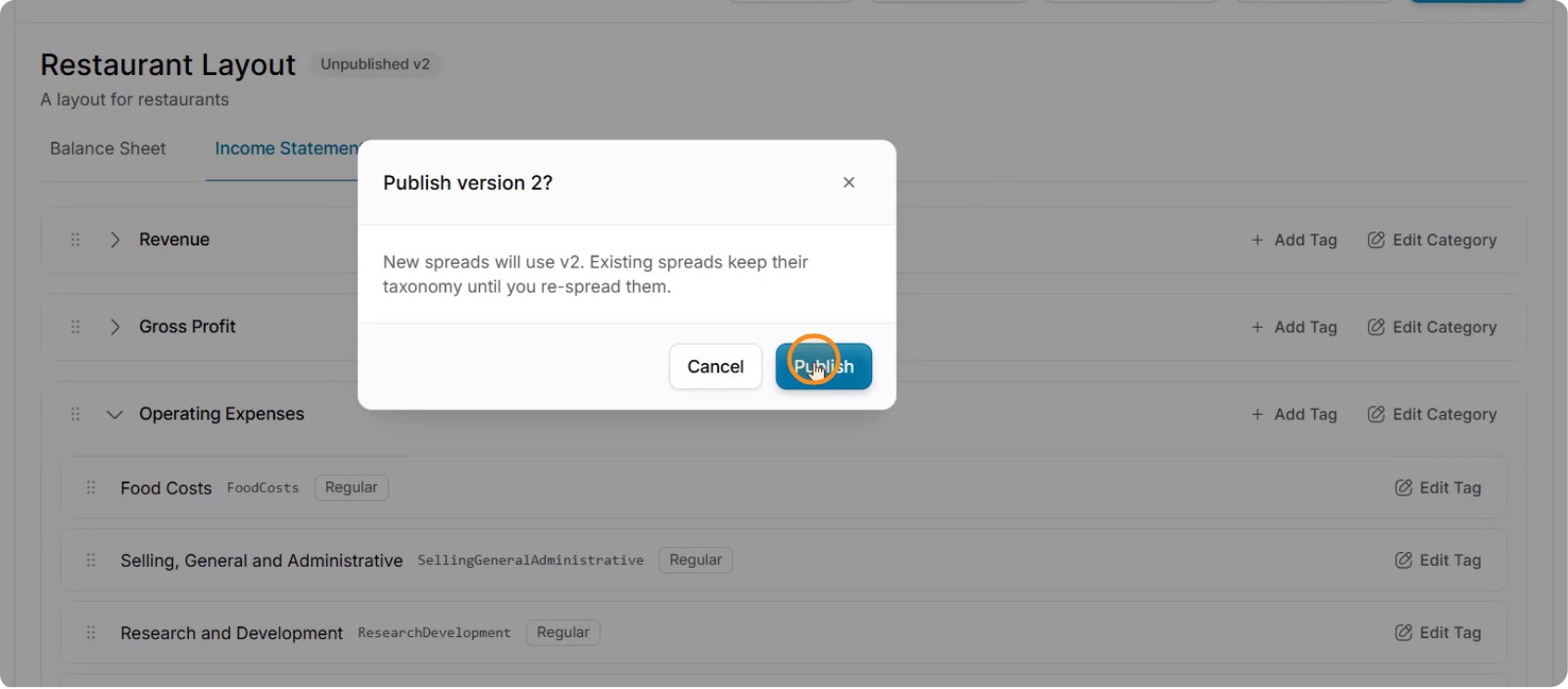
Once published, you can select this layout (e.g., Restaurant Layout or a firm-specific layout) when adding a new company. That company’s financials will then be spread automatically into the selected layout format.
Next articleSpread: Working with TagniFi Spread Data in Excel