
Spread
Updated Sep 3, 2026Working with TagniFi Spread Data in Excel
Working with TagniFi Spread Data in Excel
This document explains two ways to bring TagniFi Spread data into Excel: using pre-built financial models from the Model Library, and building your own custom Excel models with TagniFi functions copied directly from Spread.
Step 1: Open the TagniFi Model Library
- 1In Excel, navigate to the TagniFi > Models section to open the Model Library.
- 2Browse the available Excel models specifically set up for Spread data.
Step 2: Select and Open a Pre-Built Spread Model
- 1In the Model Library, choose the relevant category for your analysis.
- 2For example, to perform a business valuation for a private company, select Private Company Analysis.
- 3Click Open Model to load the pre-built Excel model.
- 4Review the model contents, which include financial statements (balance sheet, income statement, cash flow statement), ratios, charts, and a pre-configured DCF (discounted cash flow) section.
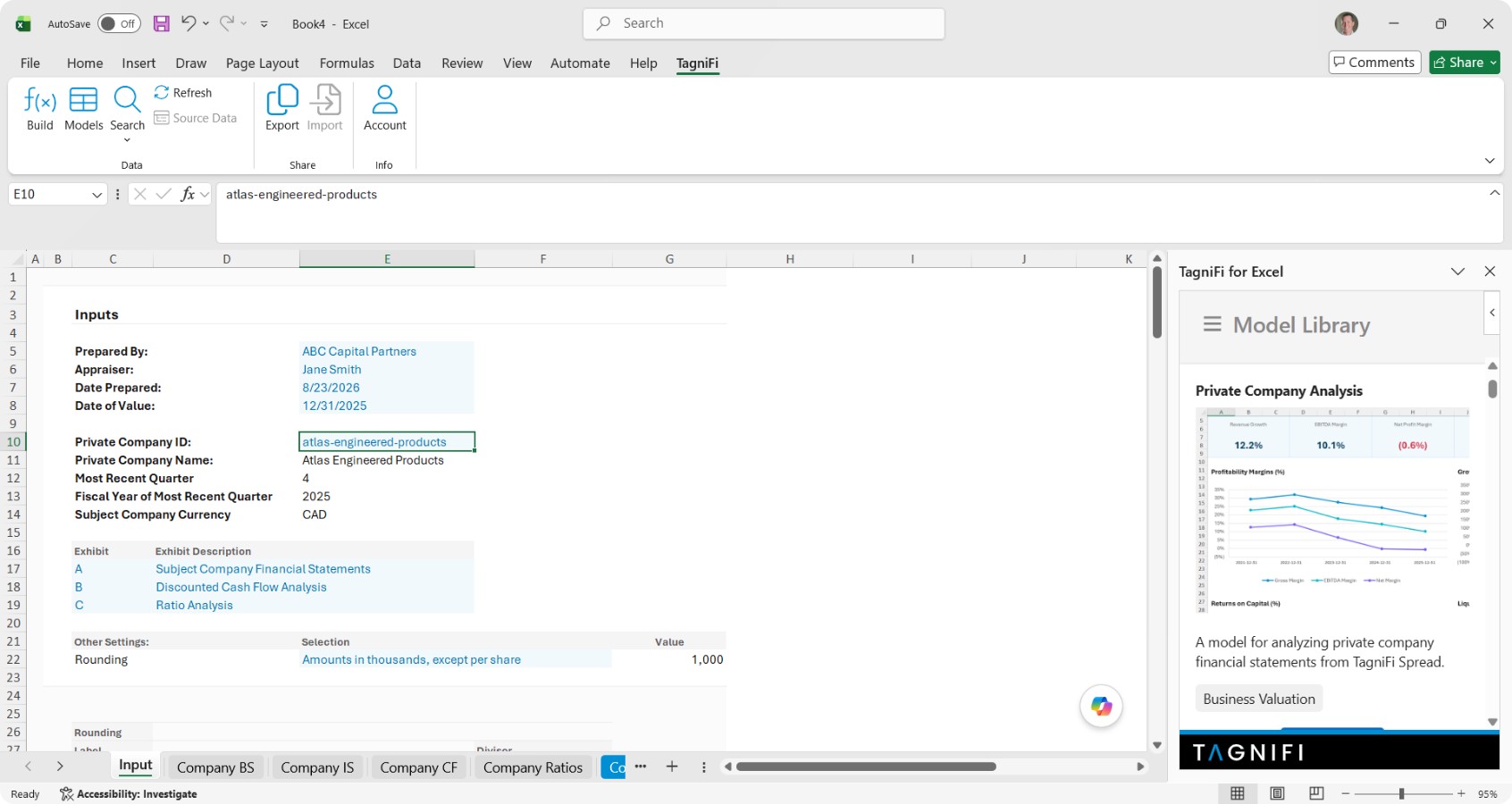
Step 3: Retrieve the Private Company ID from Spread
- 1
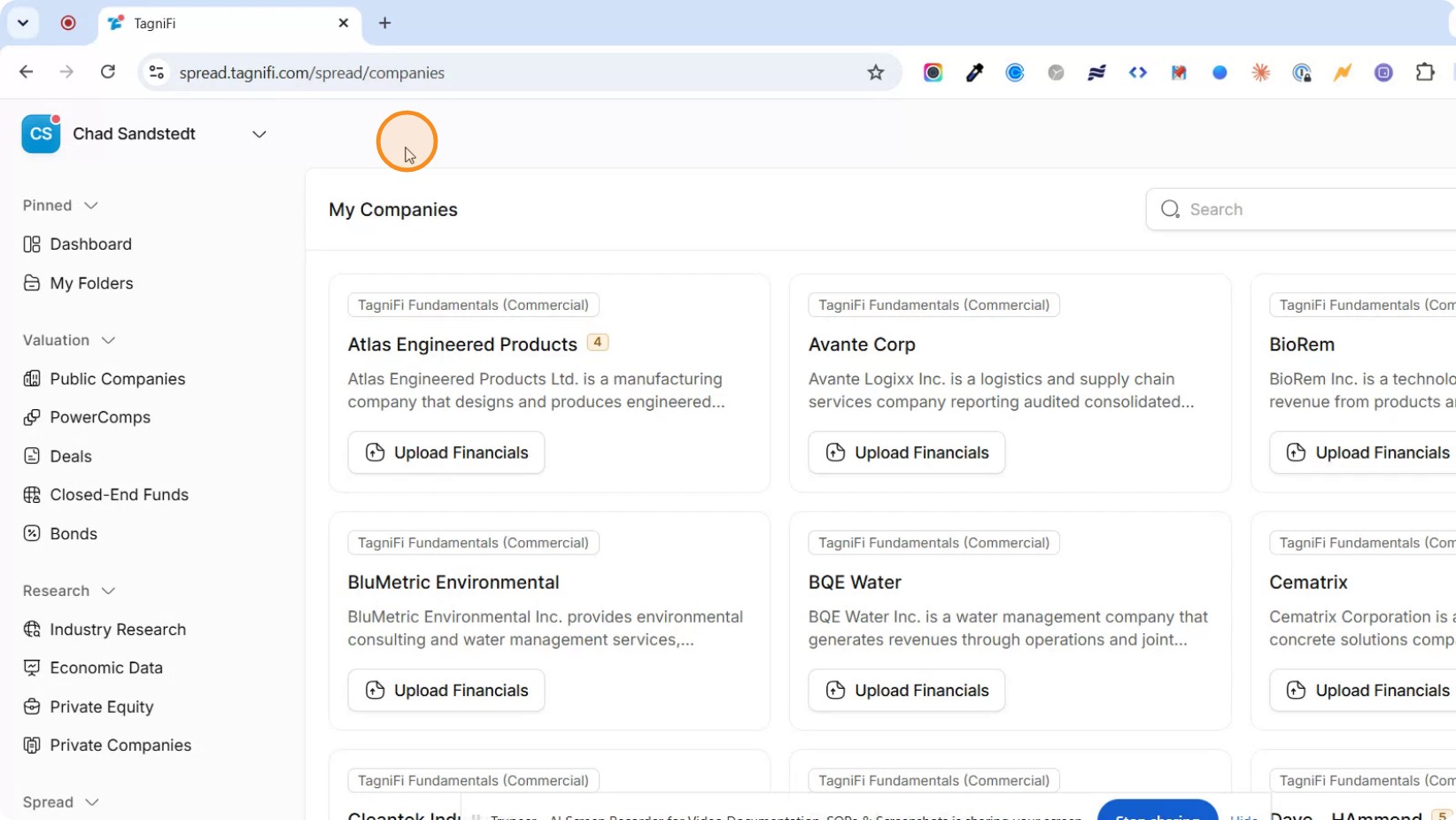
Open the Spread application.
- 2
Within Spread, navigate to the desired company; for example, Atlas Engineered Products.

- 3
Locate and copy the company’s Spread ID.

Step 4: Populate the Pre-Built Model with Spread Data
- 1Return to the pre-built Excel model.
- 2Paste the copied private company ID into the designated Spread ID input cell in the model.
- 3Ensure the valuation date is correctly entered in the model.
- 4Allow the model to refresh; it will automatically populate all sections—balance sheet, income statement, cash flow statement, ratios, charts, and DCF—based on the entered ID and valuation date.
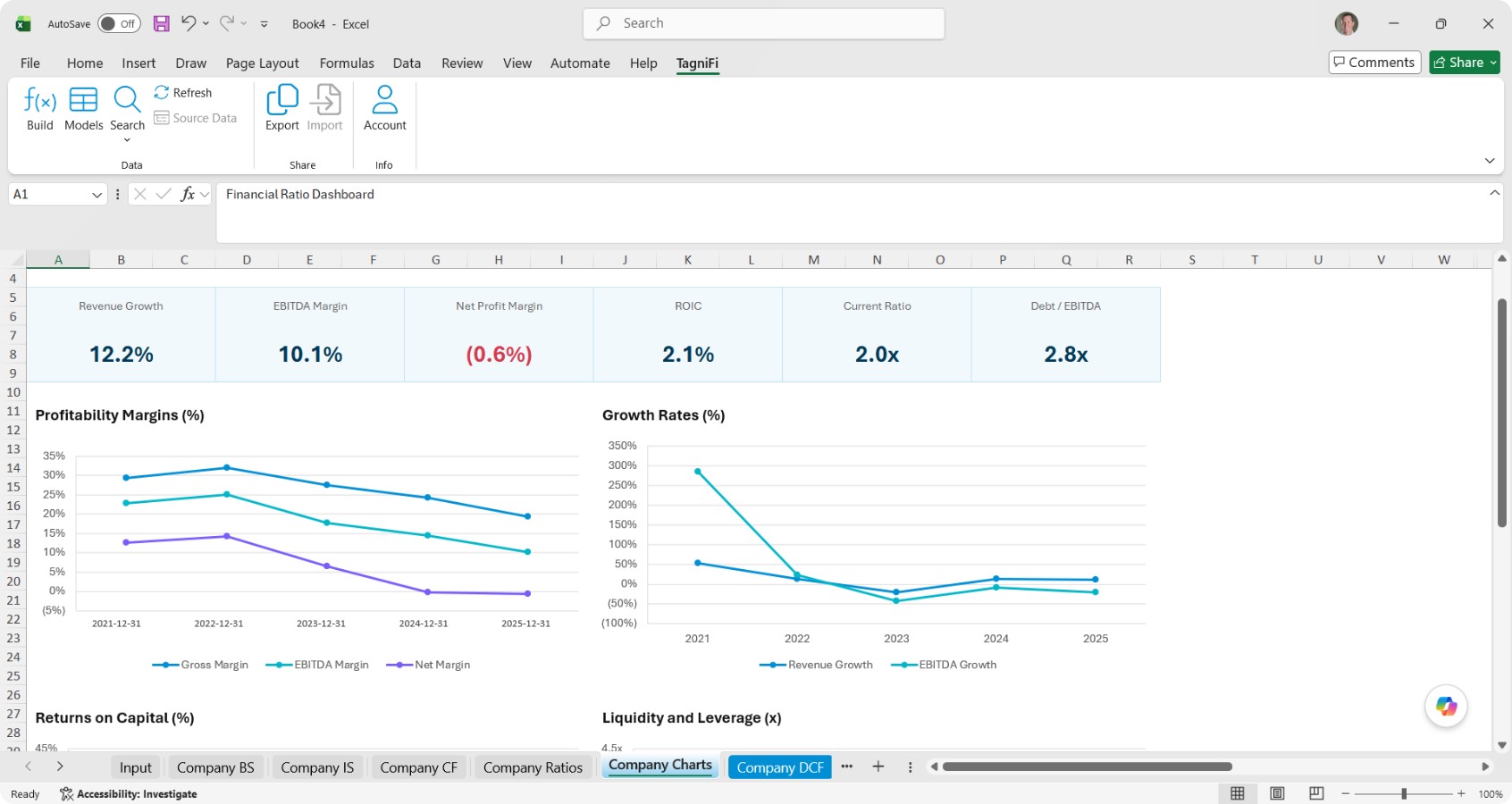
Step 5: Access Individual Financial Statement Line Items in Spread
- 1
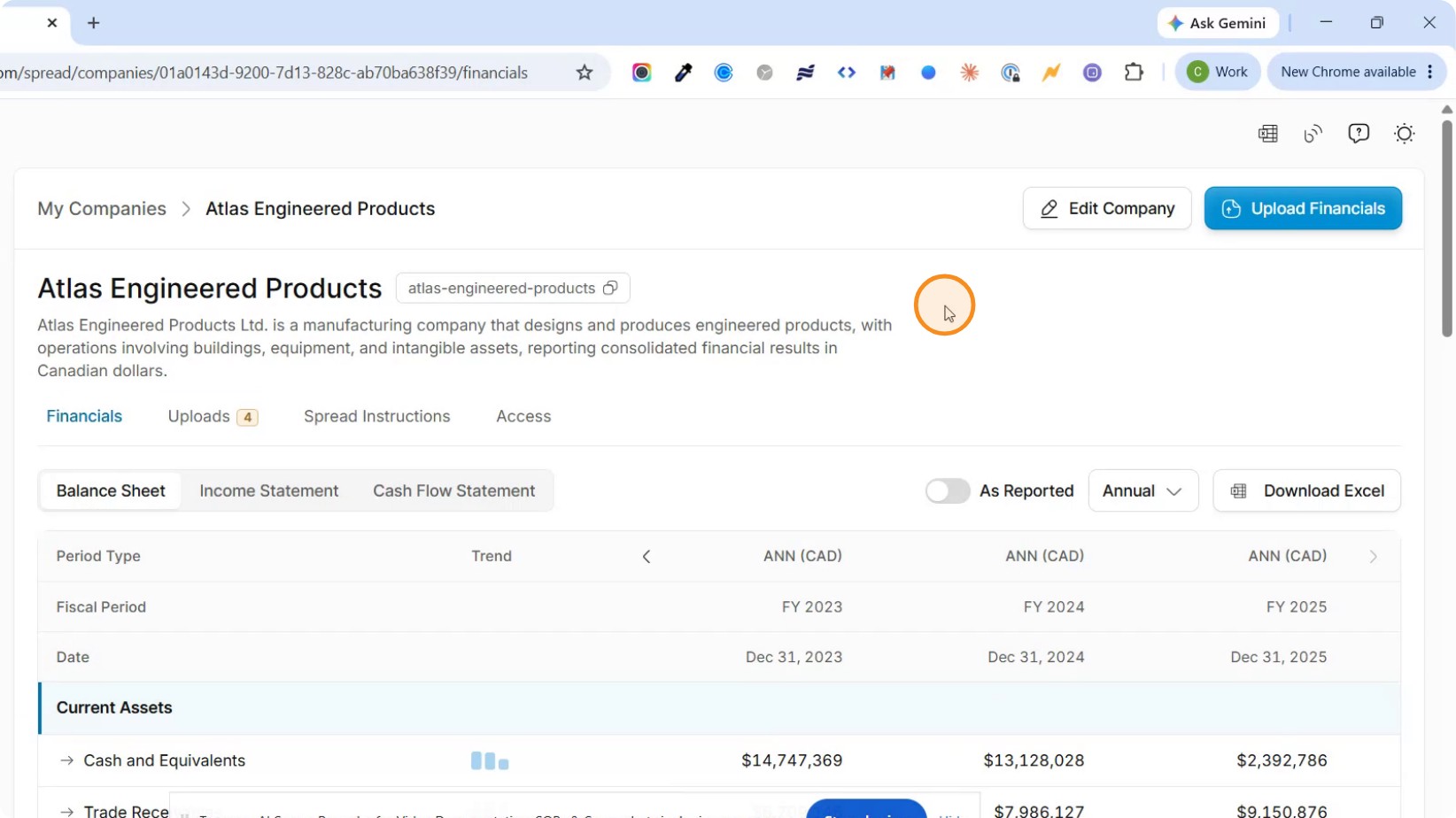
To build your own model instead of using a pre-built one, go back to the company view in Spread.
- 2
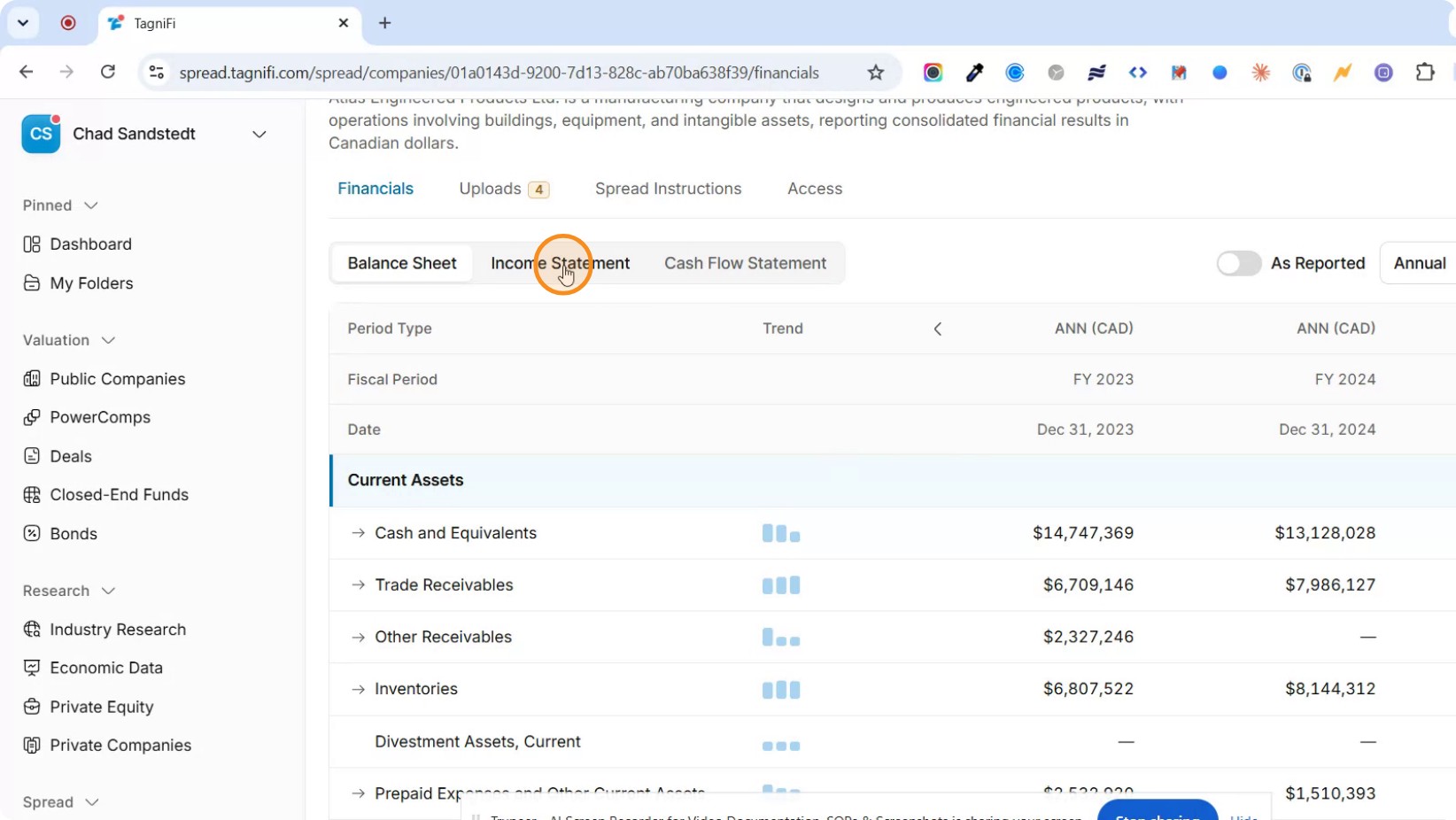
Open any of the financial statements (e.g., balance sheet, income statement, or cash flow statement).
- 3
Identify the specific line item you want to pull into Excel, such as Cash and Equivalents from the balance sheet or Revenue from the income statement.
Step 6: Copy the TagniFi Excel Function for a Data Point
- 1
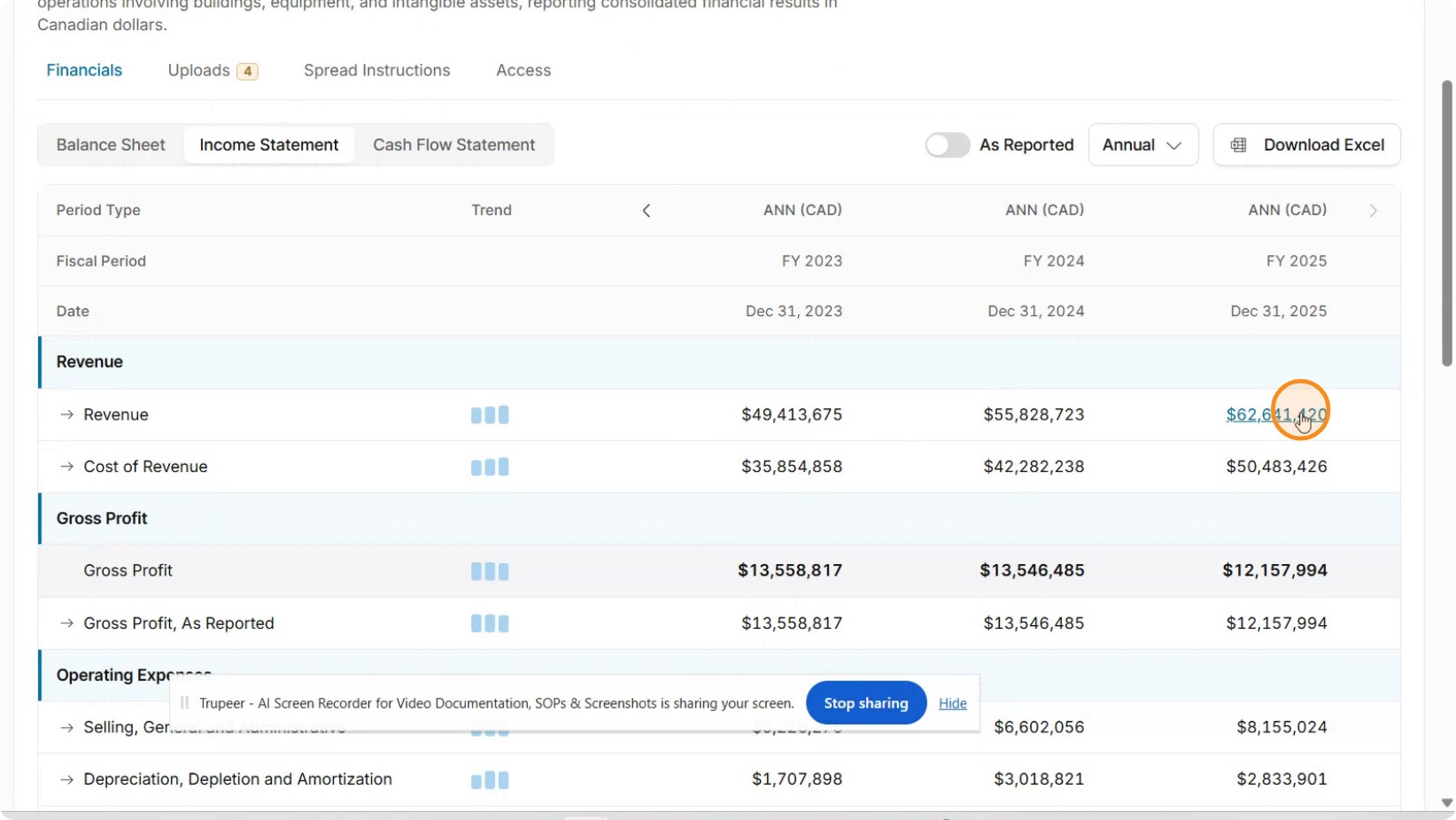
Click on the specific numeric value you want to pull into Excel.
- 2
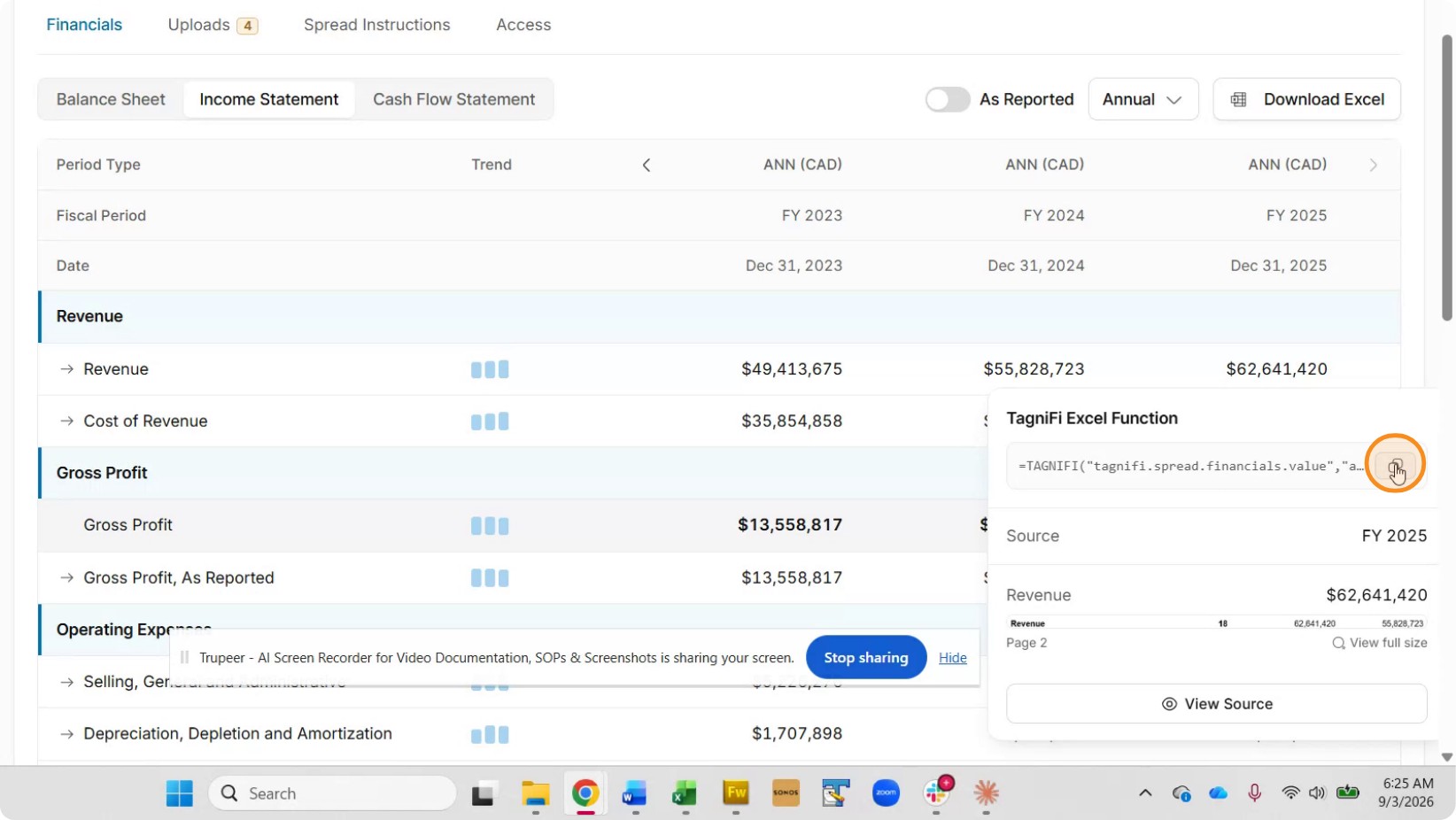
In the pop-up that appears, locate the Excel function shown at the top.
- 3
Copy this function.
Step 7: Use the Function in Your Own Excel Model
- 1Open a blank Excel workbook or an existing custom model where you want the data to appear.
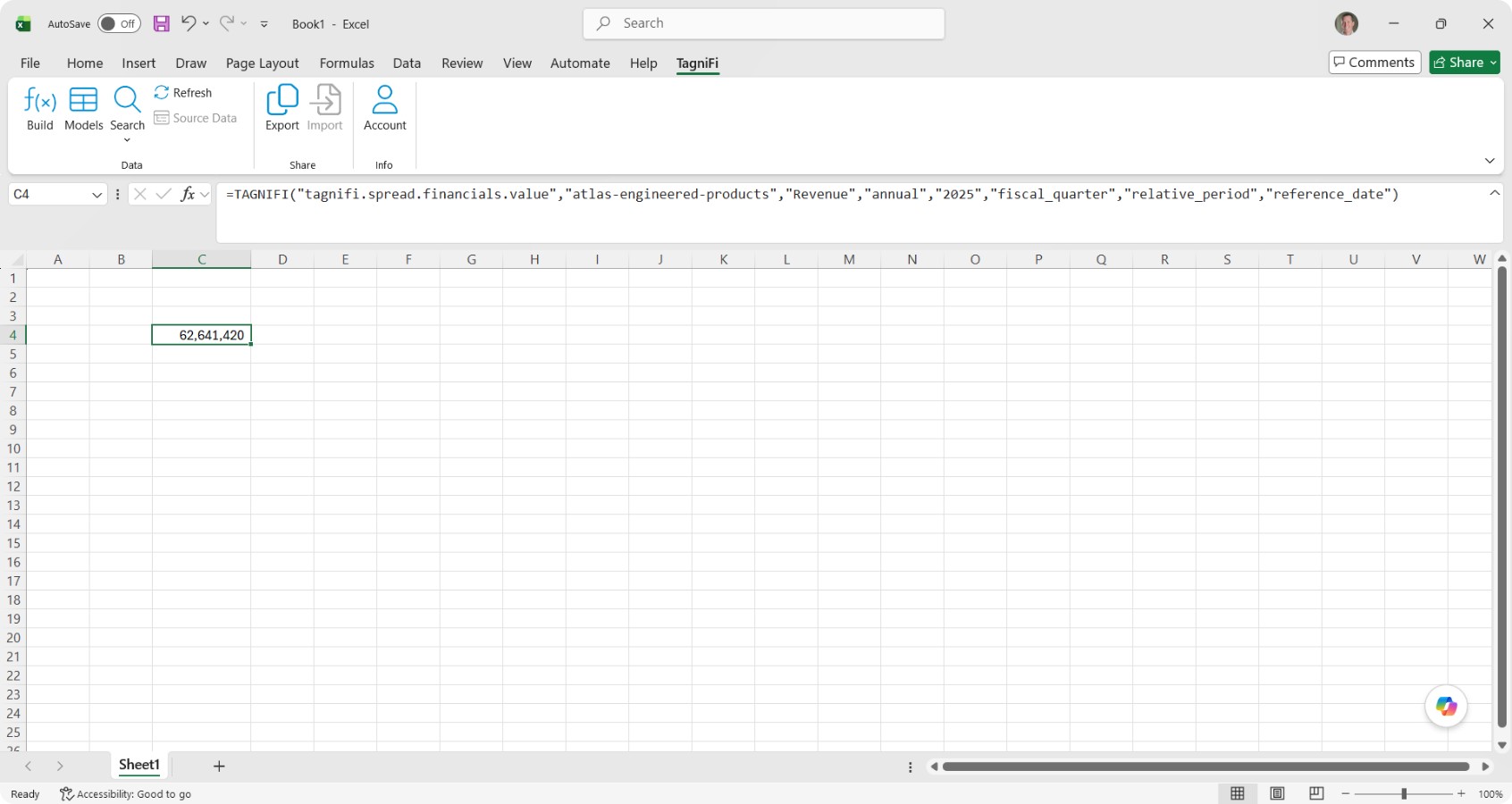
- 2Paste the copied TagniFi function into the desired cell.
- 3Press Enter to execute the function; Excel will query Spread and return that specific data point (e.g., revenue for Atlas Engineered Products).
At this point, you can repeat the process for additional line items, enabling you to either rely on pre-built TagniFi models or construct fully customized Excel models powered by Spread data.
Next articleSpread: Managing and Resolving Financial Statement Errors